

AI Image Restoration Online: Moebius Repair Guide
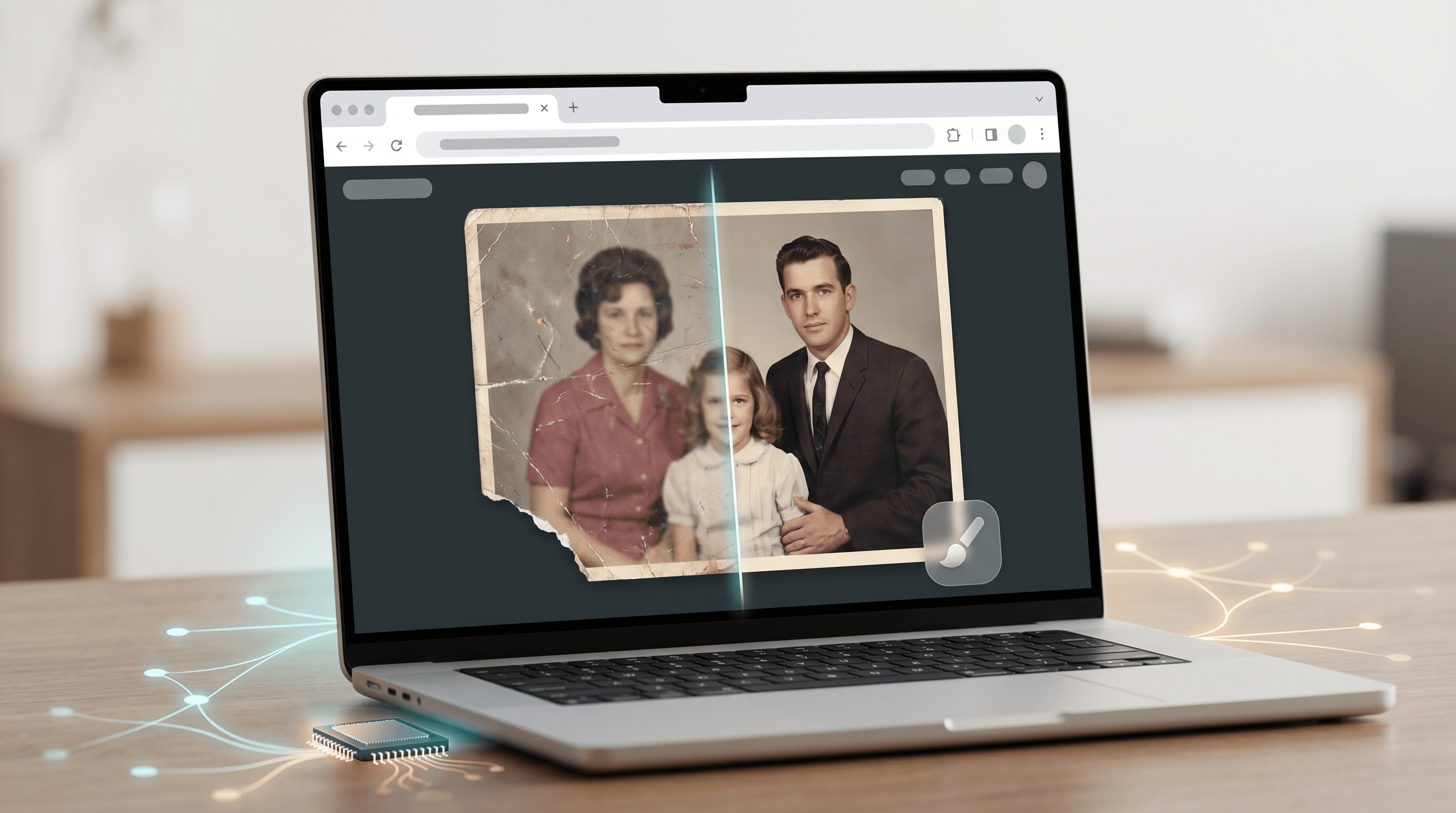
A family photo rarely fails all at once. It usually has one torn corner, one blurred face, one stain across the sky, or one object that ruins the frame. That is exactly where AI image restoration online is getting more useful: you no longer need to rebuild the whole image by hand. You mark the damaged area, describe the repair, and let an image inpainting model fill the missing context.
The timing matters. On June 17, 2026, the Moebius team published Moebius: 0.2B Lightweight Image Inpainting Framework with 10B-Level Performance. Five days later, Simon Willison showed a browser ONNX/WebGPU port with a live demo. This guide explains what that means for AI image restoration online, then turns it into a practical workflow for repairing blurry, damaged, or partially missing photo areas with tools like Imgezy.
Last updated: June 23, 2026
On this page
- What Moebius Changes About AI Image Restoration Online
- Why Browser-Capable Restoration Models Matter
- Step-by-Step Guide: Repair a Photo Online
- Prompt Recipes for AI Photo Repair
- Pro Tips for Better Results
- When Not to Use AI Restoration
- FAQ
What Moebius Changes About AI Image Restoration Online
Moebius matters because it shows that high-quality image inpainting does not always require a giant general-purpose model. The paper reports a 0.22B-parameter specialist that competes with 10B-level inpainting systems, which points toward faster, cheaper, and more private AI image restoration online workflows.
In practical terms, Moebius is an image inpainting model: it looks at the visible part of an image, a masked damaged area, and the surrounding context, then predicts what should fill the gap. That maps directly to common photo repair jobs: remove a scratch, rebuild a torn corner, replace a stain, repair a blurred patch, or erase an unwanted object while keeping the scene coherent.
The headline numbers are why the model caught attention. The Moebius paper compares Moebius at 0.226B parameters with FLUX.1-Fill-Dev at 11.902B parameters and reports 26.01 ms per step for Moebius versus 161.01 ms per step for FLUX.1-Fill-Dev. With default sampling settings, the paper reports 0.52 seconds total time for Moebius versus 8.05 seconds for FLUX.1-Fill-Dev - about a 15x total inference-time gap.
That does not mean every AI image restoration online product will suddenly run Moebius in your browser. The more useful takeaway is architectural: small, specialized restoration models can deliver enough quality for repair tasks without needing the full cost and latency of a giant image generator.
Why Browser-Capable Restoration Models Matter
Browser AI image restoration changes the user experience because the repair loop can move closer to the photo. When a restoration model can run in a browser or near the edge, users get faster previews, less upload friction, and a more private path for sensitive family photos.
Simon Willison's Moebius browser demo is not a tiny download: it warns that the first run pulls about 1.27 GB of model weights from Hugging Face, with the UNet alone around 907 MB. It also requires a WebGPU-capable browser. Still, it proves the direction: AI image restoration online can shift from pure cloud processing toward client-side or hybrid processing.
ONNX Runtime Web is one reason this is possible. Its WebGPU execution provider lets web apps use the client GPU for compute-heavy models, while the regular ONNX Runtime Web package supports browser inference through JavaScript APIs. The official JavaScript docs list WebGPU support for Chromium-based desktop and Android browsers, with WebAssembly and WebGL as broader fallback paths.
| Approach | What happens | Best for | Watch out for |
|---|---|---|---|
| Cloud restoration | The image uploads to a server model, then downloads the result | High-end quality, large models, batch jobs | Privacy, latency, upload limits |
| Browser restoration | The model runs locally with WebGPU or WASM | Private previews, fast small edits, offline-like UX after download | Large first download, browser/device support |
| Hybrid restoration | Masking and preview run locally; final render uses cloud models | Balanced quality and speed | Product complexity, two execution paths |
For everyday users, the key point is simple: smaller inpainting models make AI image restoration online feel more like editing and less like waiting. You can brush an area, preview the repair, adjust the prompt, and repeat.
Step-by-Step Guide: Repair a Photo Online
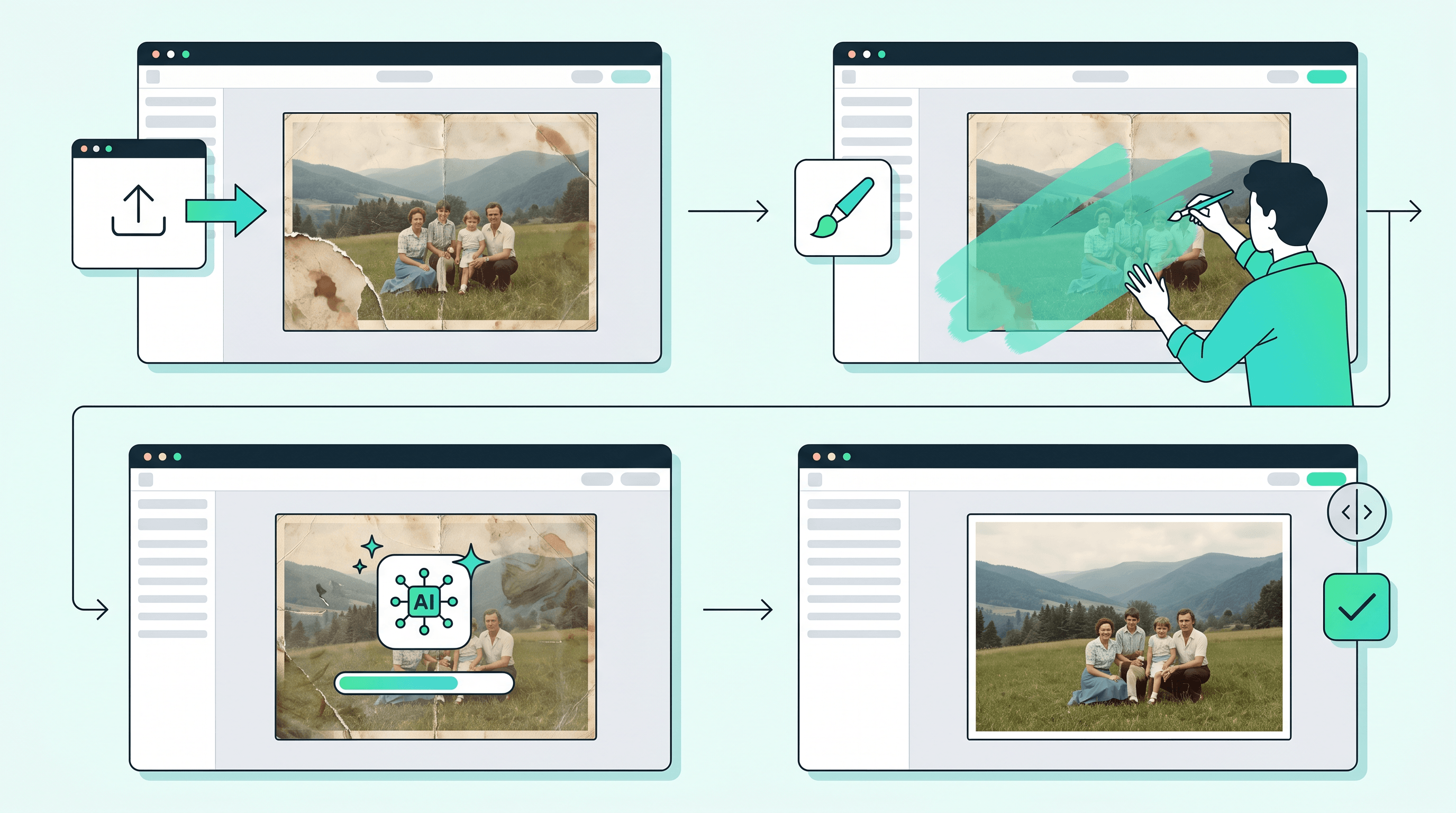
The best workflow for AI image restoration online is not "upload once and hope." Use a controlled sequence: prepare the image, mark the damaged area, run Smart Repair or inpainting, inspect edges, enhance the final image, and save both the original and restored versions.
Step 1: Start with the cleanest scan or upload you have
Use the highest-quality source available. A flatbed scan is best for old prints; a phone photo can work if the paper is flat, evenly lit, and shot without flash glare. If the photo is already digital, upload the original file instead of a compressed social-media copy.
For AI image restoration online, source quality controls how much the model must invent. If the photo has enough texture around the damaged area, the repair can stay conservative. If the surrounding area is blurry or cropped too tight, the model has to guess.
Step 2: Identify the damage type before you prompt
Do not use one vague instruction for every repair. Name the damage precisely: scratch, torn corner, water stain, missing sky, blurred face, object blocking the background, or text printed over the image. A specific damage label gives the image inpainting model a narrower job.
If you are fixing a family or archive photo, also state what must not change. For example: "Repair the scratch across the jacket, preserve the person's face, clothing, and background, do not add new objects." That is safer than "restore this photo."
Step 3: Use Smart Repair or inpainting on the damaged area
Brush or mask only the damaged region, then run the repair. This is where Imgezy fits the workflow: upload the photo, describe the damaged area, and use Smart Repair to rebuild blurry or broken regions without learning Photoshop layers. For many object-style repairs, the remove object tool follows the same idea: mark what should disappear and let AI reconstruct the background.
Prompt example:
Repair the torn lower-left corner and the thin scratches across the sky. Keep the people, mountains, and lighting unchanged. Reconstruct only the missing paper area.
This is the highest-intent point in the AI image restoration online workflow because the reader already has a damaged image and a concrete repair target.
Step 4: Check the repair boundary at 100% zoom
Most AI photo repair mistakes happen at the edge of the mask. Look for smudged texture, repeated patterns, odd skin detail, or a straight line where the patch meets the original image. If the edge looks wrong, run a smaller second pass instead of masking the whole photo again.
For object removal, inspect shadows and reflections. A removed pole may leave a warped fence; a removed stain may leave a color halo. Strong AI image restoration online results usually come from two or three restrained passes, not one aggressive edit.
Step 5: Enhance sharpness and color after the repair
Repair first, enhance second. If you sharpen or upscale before fixing scratches, the enhancement step makes every defect more visible. After repair, use a light enhancement pass to restore clarity, contrast, and local detail. If you need a larger output, use an image upscaler only after the repair looks natural.
Keep color correction conservative. For old photos, "natural color, light grain preserved, no plastic skin" is better than "make it HD." The goal of AI image restoration online is believable repair, not a new image that only vaguely resembles the original.
Step 6: Export versions and keep the unedited original
Save at least three files: the original scan, the repaired version, and the final enhanced export. If the image has historical or family value, label the restored version as AI-restored when you share it. That keeps the archive honest and avoids confusing a plausible reconstruction with factual history.
Prompt Recipes for AI Photo Repair
Good prompts for AI image restoration online describe the damaged area, the desired repair, and the preservation rule. The preservation rule is the part most people skip, and it is the part that keeps faces, clothing, documents, and backgrounds from drifting.
| Repair job | Prompt recipe | What to inspect |
|---|---|---|
| Scratched old print | "Remove thin white scratches across the photo paper. Preserve faces, clothing, and original grain." | Skin texture, fabric detail, repeated lines |
| Torn corner | "Reconstruct the missing corner using the surrounding background. Do not add new people, objects, or text." | Corner geometry, texture match |
| Water stain | "Remove the brown water stain and restore the original background color underneath." | Color halo, edge blending |
| Blurry face area | "Improve clarity on the face lightly. Preserve identity, age, expression, and natural skin texture." | Over-smoothing, changed facial features |
| Object blocking the scene | "Remove the object in the foreground and rebuild the background behind it." | Shadows, reflections, repeated patterns |
| Text or timestamp on photo | "Remove the printed text overlay. Recreate the image content underneath without adding new detail." | Letter ghosts, background continuity |
For AI image restoration online, write prompts like a repair brief, not a style prompt. "Make it beautiful" invites the model to restyle the photo. "Repair the scratch and preserve the original grain" gives the model a bounded task.
Pro Tips for Better Results
Better AI image restoration online results come from smaller masks, stricter prompts, and a clear separation between repair and enhancement. Treat restoration as conservation work: fix the damage first, then improve presentation only after the repaired image still looks believable.
- Mask less than you think. A tight mask forces the model to use nearby context. A huge mask invites unwanted invention.
- Repair before colorizing. Colorizing a damaged photo first makes stains and scratches look like real image content.
- Preserve grain on old prints. Perfectly smooth skin or paper texture makes restored photos look fake.
- Use one repair goal per pass. Fix scratches, then stains, then missing corners. Multi-goal prompts are harder to control.
- Avoid changing identity. For portraits, include "preserve identity, age, facial structure, and expression."
- Use the right tool page for the job. Repair damage with Smart Repair, remove distractions with remove object, swap a destroyed background with AI background changer, then upscale only at the end.
When Not to Use AI Restoration
Do not use AI image restoration online when the missing content must be historically exact and you have no reference. AI can make a plausible patch; it cannot know the real medal, street sign, handwriting, face detail, or background object that was destroyed.
For family sharing, AI photo repair is usually fine when you are transparent. For legal, archival, journalistic, or forensic work, keep the original untouched and treat the AI output as an annotated reconstruction. If the damaged area contains a name, date, uniform insignia, license plate, document, or other evidence, do not ask the model to invent it.
Moebius itself also has boundaries. The paper focuses on inpainting benchmarks and real-world object removal, not magic recovery of information that no longer exists. That is a healthy way to think about every AI image restoration online tool: it is best at coherent repair, not truth recovery.
FAQ
What is AI image restoration online?
AI image restoration online is the process of repairing damaged, blurry, stained, or partially missing images in a browser-based or cloud-based tool. You upload a photo, mark the damaged area, describe the repair, and an AI model reconstructs the missing or degraded region.
Is Moebius available for browser AI image restoration?
Moebius is available as code, weights, and demos, but it is still a research-oriented image inpainting model rather than a polished consumer product. The official Hugging Face model card links to the project page, paper, code, and weights, while Simon Willison's browser demo shows an experimental ONNX/WebGPU path.
Can AI image restoration online fix blurry photos?
AI image restoration online can improve light blur when the subject is still recognizable, but it cannot recover exact detail that was never captured. For faces, use restrained prompts such as "improve clarity lightly, preserve identity and age" to avoid a synthetic-looking replacement face.
Is browser AI image restoration more private than cloud repair?
Browser AI image restoration can be more private when the model and processing run locally, because the photo does not need to leave the device. The trade-off is that local models may require large downloads, WebGPU support, and enough device memory, so many products still use cloud or hybrid processing.
Which photos work best for AI photo repair?
Photos with clear surrounding context work best: scratches over a sky, stains on a wall, torn paper at an edge, or a small object over a repeating background. Large missing faces, unreadable documents, or destroyed areas covering more than a modest part of the frame are much harder.
Should I disclose AI restoration?
Yes, disclose AI restoration when the image has family, historical, journalistic, or commercial importance. A simple note such as "AI-restored from the original scan" is enough for most sharing contexts and keeps viewers from confusing plausible reconstruction with untouched evidence.
Conclusion
Moebius is a useful signal for the future of AI image restoration online: smaller specialist inpainting models can repair damaged image regions quickly enough to make photo repair feel interactive. The browser ONNX/WebGPU demo shows where the experience is heading, even if most users will still prefer finished products over research demos.
For real photos, keep the workflow simple: start with the cleanest upload, mask only the damaged area, use a precise repair prompt, inspect the boundary, enhance after repair, and save the original. That sequence works whether the tool runs in the cloud, in the browser, or somewhere in between.
Ready to repair a damaged photo without manual retouching? Try Imgezy free -> Use Smart Repair, object removal, background editing, and upscaling in one online workflow, with free trial credits for new users.