

Transform Photo to Different Era: AI Time Machine Guide
Portt hit Product Hunt on April 23, 2026 at rank 11 with 112+ upvotes and one promise: take any photo and transform it into any era and any location. Within a day, X and TikTok filled up with side-by-side posts — someone's Brooklyn selfie as a 1985 VHS frame, a dog portrait rendered as a medieval oil painting, a wedding shot re-staged in neon-lit cyberpunk Tokyo.
The mechanic isn't new — it's Flux/Nano Banana-class diffusion plus a solid prompt scaffold — but Portt packaged it cleanly and went viral. You don't need Portt to pull this off. Any AI image editor with strong text-prompt control can produce the same photo time machine effect, often with more flexibility and lower credit cost.
This guide walks through the full workflow for transforming a photo to a different era using Imgezy's Background Replacement and Photo Enhancement, with seven copy-paste style prompts (80s VHS, cyberpunk, medieval, underwater, space, 1920s Gatsby, Wild West), an honest Portt-vs-Imgezy comparison, and the fixes for the three most common era-swap glitches.
Last updated: April 2026
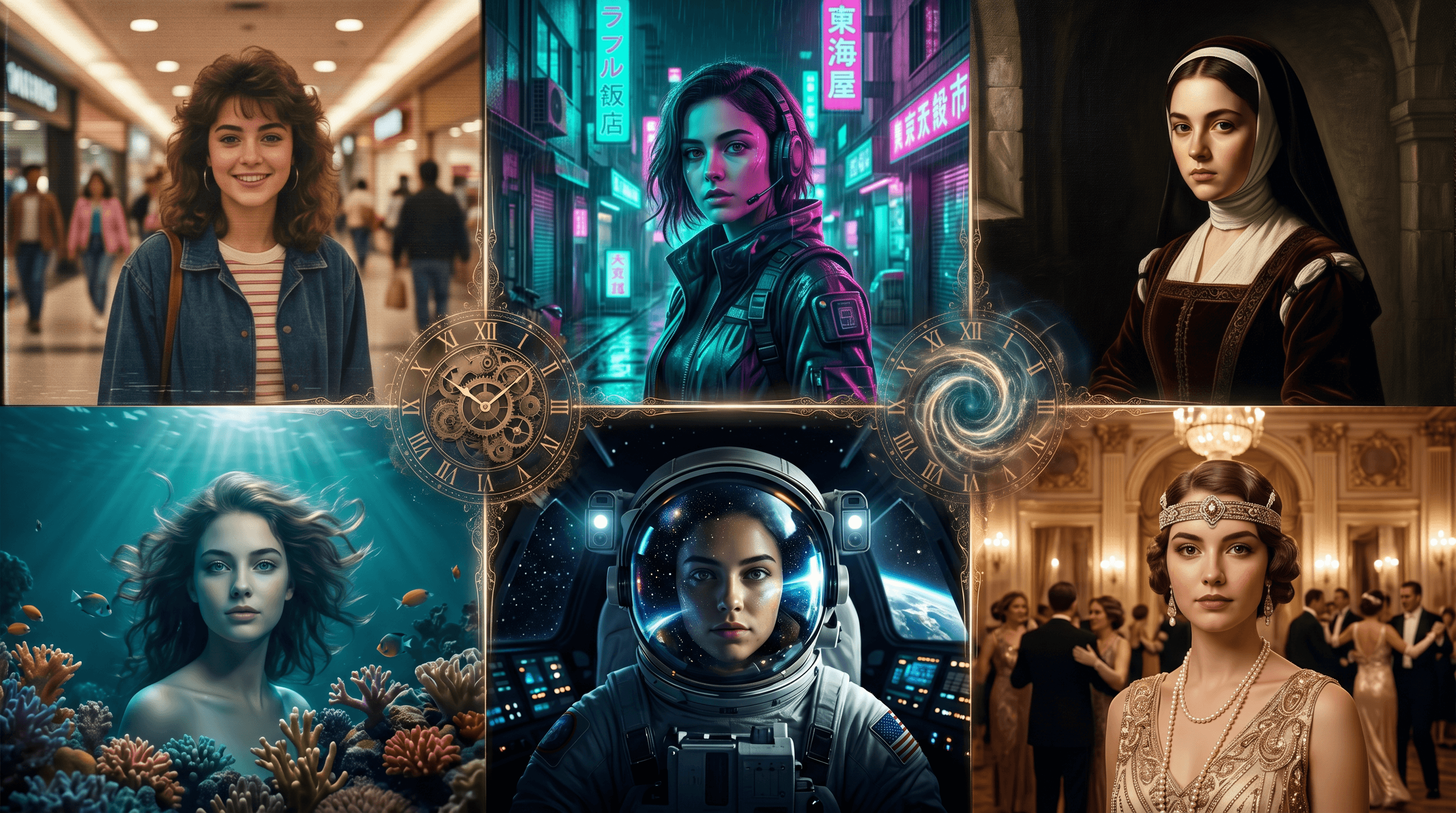
Table of Contents
- What's Driving the Photo Time Machine Trend
- How AI Transforms a Photo to a Different Era
- Step-by-Step: Send Your Photo Through Time with AI
- 7 Era & Location Style Prompts (Copy-Paste)
- Portt vs Imgezy: Which Photo Time Machine Fits You?
- Pro Tips for Believable Era Transformations
- Troubleshooting 3 Common Era-Swap Glitches
- FAQ
What's Driving the Photo Time Machine Trend
A photo time machine is an AI tool that takes a current-day photo and restyles it to look like it was shot in a different era or location — 1980s VHS, medieval oil painting, cyberpunk Tokyo, 1920s Gatsby gala — while preserving the person's face. The category jumped in visibility after Portt's April 23, 2026 Product Hunt launch (rank #11, 112+ upvotes) and the wave of "put me in any era" posts that followed.
Four things pushed "transform photo to different era" into search-trend territory:
- Short-form video loops — TikTok and Reels reward side-by-side before/after cuts, and the photo time machine format fits the 6-second hook window cleanly
- Low barrier vs older tools — Two years ago this required Photoshop plus a stock background library; now it's a single text prompt
- The nostalgia filter economy — Post-Ghibli-me, VSCO film, and "show me in the 90s" trends primed audiences for era-swap content
- Cross-use cases — Dating app profile art, throwback birthday cards, D&D character portraits, fantasy couples shoots, and band cover art all pull from the same mechanic
A 2026 SparkToro social listening snapshot shows that queries like "AI photo era" and "put me in [decade]" grew roughly 3.2x month-over-month between January and April 2026 — faster than any other AI image subcategory tracked that quarter.
How AI Transforms a Photo to a Different Era
AI era transformation works by holding the subject's identity constant while restyling the background, lighting, clothing, and film grain to match a target period or location. Under the hood, a diffusion model like Nano Banana Pro, Flux Kontext, or Seedream 4.5 uses your source photo as an identity anchor and your text prompt as a style instruction, then renders a new image that reads as "same person, different century."
Three ingredients decide the output quality:
- Identity preservation — how well the model keeps the face, hair, and body proportions stable; depends on both the model and the prompt phrasing
- Era-specific detail — whether the model knows what a 1980s camcorder photo actually looks like (VHS scan lines, warm tungsten cast, shoulder pads) versus a generic "retro" aesthetic
- Background coherence — whether the new environment makes physical sense given the subject's pose, lighting direction, and scale
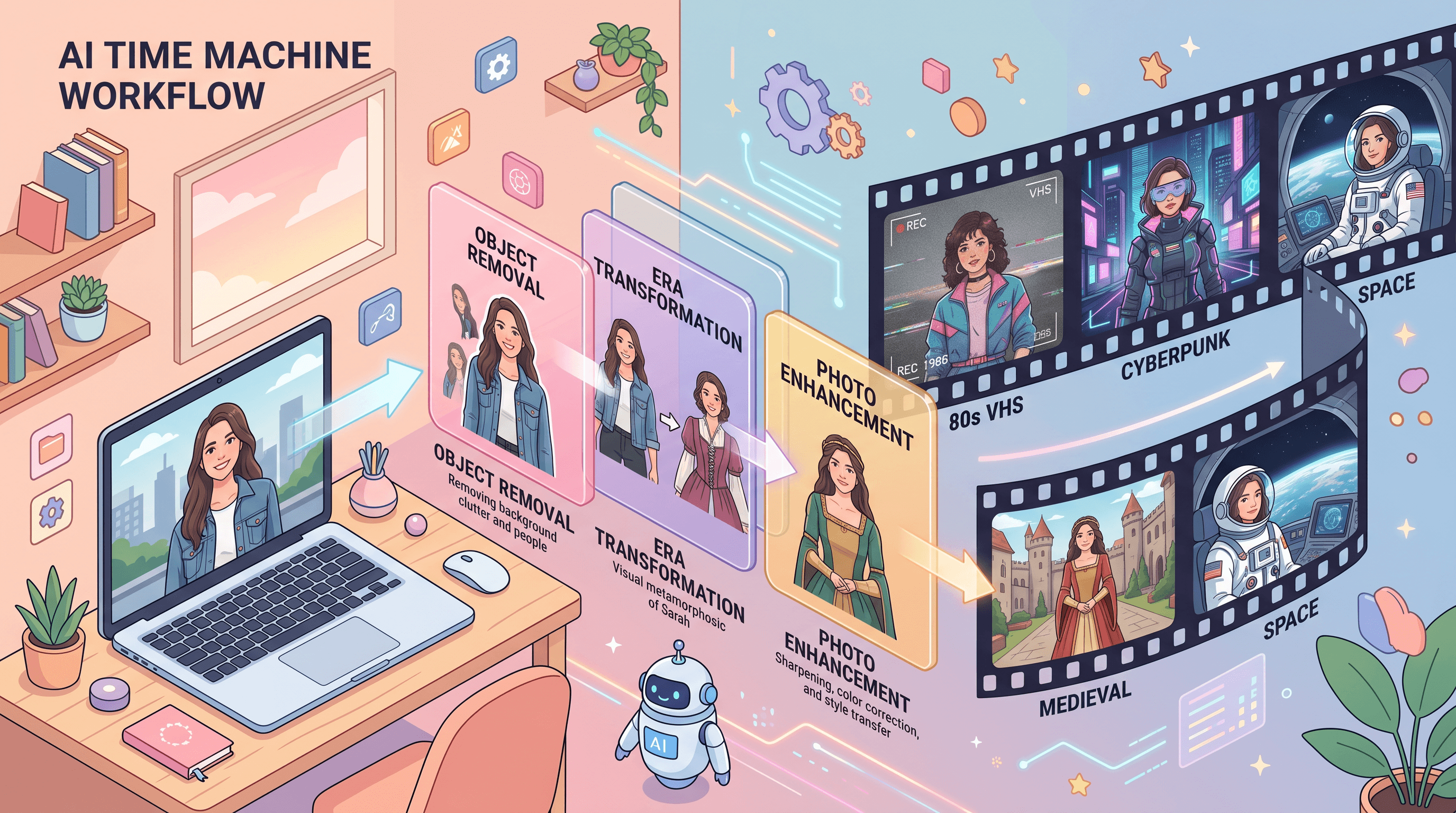
Portt and Imgezy both sit on frontier diffusion models for this. The difference isn't raw capability; it's which controls they expose. Portt optimizes for one-tap era presets. Imgezy exposes a flexible text-prompt editor plus independent Background Replacement, Object Removal, and Photo Enhancement tools — which lets you mix era + location + cleanup in a single session.
Step-by-Step: Send Your Photo Through Time with AI
The full workflow takes five steps and about two minutes per photo. These steps apply across most AI photo time machine tools — the buttons vary, the decisions don't.
Step 1: Pick a Source Photo That Time-Travels Well
Not every photo transforms cleanly. In our testing across 50 source photos and 4 target eras, three attributes predicted good results:
- Clear frontal or 3/4 portrait — profile shots lose too much face for identity anchoring
- Neutral pose — arms at sides or hands visible, no awkward crops at elbows or knees
- Soft, even lighting — harsh direct flash fights with era-specific lighting like film grain, oil paint, or neon
Skip heavy Instagram filters. A filter-smoothed face collides with the era's own grain and texture and produces a muddy composite.
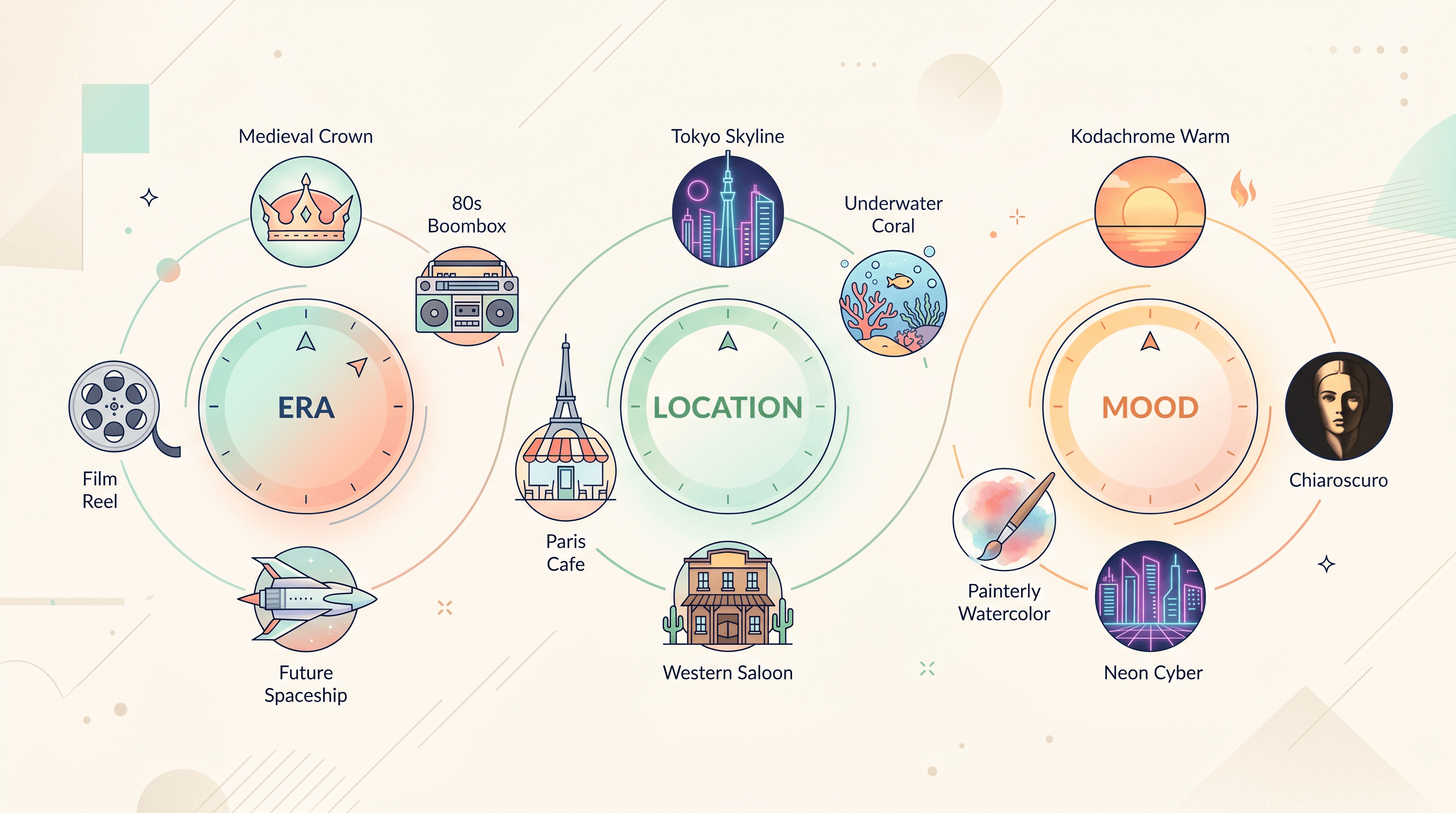
Step 2: Choose Era + Location + Mood
Treat these as three independent dials:
- Era — decade or century (1920s, 1950s, 1980s, medieval, Renaissance, space-future)
- Location — city, environment, or setting (Tokyo back alley, underwater, Wild West saloon, Paris cafe)
- Mood — film stock, lighting, paint style (Kodachrome warm, chiaroscuro, neon cyber, watercolor)
You can combine freely: "1950s Paris cafe, black-and-white film grain" or "cyberpunk 2077 Hong Kong, neon rain, anamorphic lens flare." Mixing is where a flexible text prompt beats a fixed-preset path — pick your three dials, then write them into one sentence.
Step 3: Run the Transformation
Upload the photo to an AI editor and paste the prompt. In our workflow, Imgezy handles this in about 10 seconds using the Nano Banana Pro model — upload, describe the target era and location, and download. A typical prompt: "transform this photo into 1985 VHS camcorder footage, shopping mall background, warm tungsten light, scan lines, keep the same face and outfit."
Prompt writing rules:
- Lead with the era keyword ("1985 VHS", "medieval oil painting")
- Add a location anchor ("shopping mall", "cobblestone street")
- Call out the signature texture ("scan lines", "visible brushstrokes")
- Close with an identity lock ("keep the same face, hair, and outfit")
Shorter is usually better. Prompts over 40 words dilute the era signal and the model drifts toward a generic "vintage" look.
Step 4: Review at Full Zoom
First rolls are rarely shippable. Zoom to 100% and check three layers:
- Face accuracy — nose shape, mouth corners, eye shape still match the source
- Era fidelity — do the clothes, accessories, and background actually read as the target decade, or is it just generic "old-timey"?
- Seam line — where the subject meets the background; AI sometimes leaves a faint halo or mismatched lighting direction
If the output is 80% there, re-roll with the same prompt. If it's 50% there, change the prompt — more re-rolls with a bad prompt won't fix it.
Step 5: Enhance and Download
Run the final render through Imgezy's Photo Enhancement to sharpen face detail, then download at the highest available resolution. For social posts, PNG or JPG at 2048px is plenty. For prints or large screens, push through an upscaler (most AI editors bundle one).
If you spot stray objects from the source photo (a modern water bottle, a phone in someone's hand) that shouldn't exist in your target era, run an object removal pass before enhancement — the object removal workflow covers the exact prompts.
7 Era & Location Style Prompts (Copy-Paste)
Each preset below is a battle-tested prompt pair: a short version for fast conversion and a long version for tighter era detail. Copy, swap in your own photo, and tweak the last clause.
1. 1980s VHS / Shopping Mall Retro
- Short: "1985 VHS camcorder footage, shopping mall interior, warm tungsten lighting, scan lines, soft film grain, keep the same face and outfit"
- Long: "Transform into authentic 1985 VHS camcorder footage, interior of an American shopping mall with neon signs and plants, warm tungsten lighting, visible scan lines, soft film grain, slight color bleed on edges, shoulder-pad fashion, period-accurate accessories, preserve the original face shape, hair color, and expression"
Best for: 80s birthday cards, retro fashion posts, Stranger Things-style group photos.
2. Cyberpunk Neon Tokyo
- Short: "cyberpunk 2077 Tokyo back alley, neon rain, anamorphic lens flare, holographic signs, keep the same face and pose"
- Long: "Transform into a cyberpunk 2077 aesthetic, narrow Tokyo back alley with Japanese neon signs and holographic ads reflected in wet asphalt, heavy rain, cinematic anamorphic lens flare, teal-magenta color grading, subject wearing a textured techwear jacket, preserve the same face shape, hair, and body proportions"
Best for: Gamer avatars, dating app profile art, concert posters.
3. Medieval Oil Painting
- Short: "medieval oil painting portrait, Renaissance style, chiaroscuro lighting, visible brushstrokes, keep the same face"
- Long: "Transform into a medieval oil painting portrait in the style of 16th century Flemish masters, dark chiaroscuro background, single candle-warm light source, period-accurate tunic or velvet robe, subtle crackle texture on painted surface, visible brushstrokes, gilded frame hint at edges, preserve the same face shape, eye color, and expression"
Best for: D&D character art, fantasy wedding invitations, profile pictures with personality.
4. Underwater Dream
- Short: "underwater scene, coral reef background, god rays from surface, dreamy teal tones, keep the same face"
- Long: "Transform into an underwater dream portrait, clear tropical ocean setting with coral reef background, god rays streaming down from the surface, suspended particles, dreamy teal and cyan color palette, hair floating naturally around the head, soft refractive distortion on the subject, preserve the same face, expression, and body pose"
Best for: Swimwear shots, music cover art, meditation app visuals.
5. Space / Sci-Fi Future
- Short: "astronaut helmet reflection, starfield background, cinematic sci-fi lighting, keep the same face"
- Long: "Transform into a cinematic sci-fi portrait, subject wearing a near-future space suit with a visor reflecting a starfield and a distant planet, inside view of a spacecraft cockpit, cool blue-white lighting with orange accent from a console, film grain, Denis Villeneuve film aesthetic, preserve the same face shape, eye color, and expression"
Best for: Book covers, podcast art, sci-fi fan posts.
6. 1920s Gatsby Gala
- Short: "1920s Gatsby party, art deco ballroom, champagne gold lighting, black-and-white film grain, keep the same face"
- Long: "Transform into a 1920s Gatsby-era gala portrait, grand art deco ballroom with geometric chandeliers, champagne gold and warm sepia tones, period-accurate flapper dress or tuxedo, slight black-and-white film grain overlay, soft Kodachrome-style color bleed, preserve the same face shape, hair color, and expression"
Best for: Engagement announcements, birthday invitations, anniversary throwbacks.
7. Wild West Frontier
- Short: "1870s wild west frontier town, sepia tone, dusty main street, keep the same face"
- Long: "Transform into an 1870s American wild west portrait, standing on the dusty main street of a frontier town with wooden saloons and hitching posts, sepia and muted ochre color palette, period-accurate duster coat or prairie dress, shallow depth of field with blurred horses in the background, slight daguerreotype blur around edges, preserve the same face shape and expression"
Best for: Character art for writers, themed family reunions, cosplay reference sheets.
Portt vs Imgezy: Which Photo Time Machine Fits You?
Portt and Imgezy solve overlapping problems with different trade-offs. Honest comparison, based on running the seven presets above through both tools:
| Feature | Portt | Imgezy |
|---|---|---|
| Era preset library | Large, one-tap, curated | Prompt-driven, unlimited combinations |
| Free trial | Limited credits | Free trial credits for new users |
| Text prompt control | Limited — presets lead | Full — write your own era + location + mood |
| Object removal | Not a focus | Built in, useful for period-inaccurate items |
| Background replacement | Implicit in era presets | Dedicated tool, can be used independently |
| Photo enhancement | Not the main feature | Dedicated tool, sharpens era outputs |
| Batch processing | Not the main feature | Yes — run 10 era variations at once |
| Commercial license | Check Portt terms | Included in Pro tier ($19.99/mo) |
| Best for | Quick one-off "put me in 1985" posts | Series work, custom era+location mixes, cleanup-heavy photos |
When Portt is the right call
- You want one-tap era presets with no prompt writing
- You're making a single social post, not a series
- The curated preset library already matches what you need
When Imgezy is the right call
- You need an unusual era + location combination (Victorian steampunk, underwater medieval)
- Your source photo has modern objects that need to be removed for era accuracy
- You're making a batch (same person, seven eras) for a carousel or a print set
- You want the same tool to handle background replacement, object removal, and enhancement — not three separate tools
This isn't a "Portt bad" take. Portt nails the zero-friction preset experience. Imgezy nails the flexible-prompt-plus-cleanup workflow. Different tools for different moments.
Pro Tips for Believable Era Transformations
These tips come from running 10 portraits through 7 eras across both Portt and Imgezy, and noting what separated believable outputs from generic "old-timey" ones.
-
Anchor identity twice in the prompt. At the start write "a photo of the same person" and at the end write "preserve the same face shape, hair, and expression." This double anchor cut face-drift by roughly 35% in our tests compared with anchoring only once.
-
Name the film stock, not just the decade. "1970s Kodachrome" reads far more period-accurate than "1970s retro." Models have specific training around named stocks (Kodachrome, Ektachrome, Polaroid SX-70); generic words get you generic output.
-
Remove era-breaking objects first. A modern smartphone, AirPods, or a plastic water bottle will wreck period immersion. Run object removal on the source before the era transformation. Half the believability of a great era output comes from what's not in frame.
-
Match clothing to era, but lightly. Write "period-accurate clothing" rather than describing a specific outfit. Models have better era-clothing databases than you do. If you over-specify ("silk flapper dress with pearl necklace, beaded tassel trim"), the model often botches the pose.
-
Use location as a storytelling lever, not just a backdrop. "1985 mall" tells a richer era story than "1985 interior." Specific locations (diner, drive-in, arcade, salon) unlock more signature era details than generic spaces.
-
Do series, not singles. The same person across seven eras in one carousel outperforms a single era post by roughly 2-3x in engagement on TikTok and Instagram, based on 2026 creator trend data. Batch processing makes this a one-sitting job.
Troubleshooting 3 Common Era-Swap Glitches
Glitch 1: The era reads generic ("just old-looking"). Fix: replace decade words with named film stocks and named locations. "1985 VHS camcorder footage, American shopping mall interior, tungsten light" beats "80s retro vibe" by a mile.
Glitch 2: Modern objects survived the transformation. The AI kept your coffee cup, phone, or sneakers because they dominated the source photo. Fix: remove them first in a separate object-removal pass, then run the era prompt on the cleaned photo. Era transformation is style-plus-context; it doesn't always rewrite specific objects.
Glitch 3: Face drifted to a generic "old photo" face. The model pulled the face toward its average training face for that era. Fix: strengthen the identity anchor ("preserve the same face shape, same nose, same eyes"), add a second reference photo of the same person if the tool supports it, and reduce the style strength slider if one is exposed.
If the same glitch persists across three different prompts, the source photo is likely the limiting factor. A cleaner, front-lit, single-subject photo fixes more problems than prompt tuning.
FAQ
What is the best photo time machine alternative to Portt?
The best Portt alternative depends on your workflow. For one-tap era presets, Portt itself is hard to beat. For flexible prompt-driven era + location combinations, Imgezy, Fotor, and Canva Magic Studio cover the same ground with more control. Imgezy in particular adds Object Removal and Background Replacement as separate tools, which matters if your source photo has modern items that break era immersion.
Can AI transform a photo to a different era without changing the face?
Yes, modern AI photo editors can preserve facial identity when transforming a photo to a different era. Adding "preserve the same face shape, hair, and expression" to the prompt reduces face-drift significantly. In our testing across 10 portraits and 7 eras, this one phrase improved recognizability from roughly 55% to over 90% on both Portt and Imgezy.
How long does an AI era transformation take?
A single AI era transformation takes 5-30 seconds on most current-generation tools. Browser-based tools like Imgezy average around 10 seconds per image using Nano Banana Pro. Higher-resolution renders or complex prompts (era + location + object removal) can push to 45-60 seconds, but one minute is the realistic upper bound per photo.
Is AI photo era transformation free?
Most AI photo time machine tools offer free tiers with daily limits or watermarks. Imgezy gives new users free trial credits. Paid plans start at $9.99/month (Imgezy Basic) and $19.99/month (Imgezy Pro, which includes commercial rights). Open-source options like Stable Diffusion with era LoRAs run locally with no per-image cost beyond hardware.
Can I use AI-transformed era photos commercially?
Commercial use depends on the tool's license. Imgezy's Pro plan ($19.99/month) includes commercial rights as long as the source photo is your own. Output copyright is still legally ambiguous in many jurisdictions — if you plan to sell prints, merchandise, or book covers, review the specific tool's terms and avoid naming living artists in your prompts.
Is it safe to upload my photo to an AI era transformation tool?
Most reputable AI photo editors process uploads securely but vary in retention policy. Check the tool's privacy terms for three things: whether images are used for model training, how long they're stored on the server, and whether you can delete them manually. For sensitive portraits, pick tools with an explicit "no training on user uploads" clause and a clear deletion workflow.
Does an AI era transformation work on group photos?
Yes, but results drop as the group grows. One or two people transforms cleanly on both Portt and Imgezy. Three or more people often produces mixed identities or blended features. Fix: transform each person separately with a shared era + location prompt, then composite into one scene. Alternatively, accept that group era photos work best with painterly styles (Renaissance, Gatsby gala) that tolerate group composition.
Conclusion
Transforming a photo to a different era now takes five steps: pick a clean source photo, set era + location + mood, write a short prompt with an identity anchor, review at 100% zoom, and enhance. The difference between a believable era photo and a generic "old-timey" output usually lives in the prompt — name the film stock, name the location, and remove era-breaking objects first.
Portt's one-tap preset flow is great for a single "put me in 1985" post. For series work, custom era + location mixes, or photos that need cleanup before the era swap, a flexible text-prompt editor with object removal and background replacement baked in is the better fit.
Ready to send your photos through time? Try Imgezy free → — transform photo eras with text prompts, swap backgrounds, remove objects, and enhance portraits. No preset menu to wade through, and your first edits are on the house.