

Gemini Omni Image Editing Alternative: Imgezy Walkthrough
Google dropped Gemini Omni on May 21, 2026, and within hours it hit #3 on Product Hunt. The demo reels are everywhere — "remove this person", "put me on a Tokyo street", "make this look like a 1980s film still". Some of those edits, Omni nails on the first try. Others, it refuses to attempt, or the rollout has not reached your region yet, or you simply do not want every edit to ride on a single closed model.
The good news: the three image-editing tasks people actually re-share from Omni are all reproducible today with a stack of three open and commercial models — Nano Banana Pro, Flux Kontext, and Qwen Image Edit — which Imgezy already wires together behind a single prompt box. This guide is a hands-on walkthrough of the most common Gemini Omni image editing alternative workflow, with the exact prompts and model choices we used to match Omni's output.
Last updated: May 2026
Table of Contents
- What Gemini Omni Does in Image Editing
- Imgezy Capability Map
- Case 1: Remove an Object with Nano Banana Pro
- Case 2: Swap a Background with Flux Kontext
- Case 3: Style Transfer with Qwen Image Edit
- Gemini Omni vs Imgezy Side-by-Side
- Limitations and Notes
- FAQ
What Gemini Omni Does in Image Editing
Gemini Omni is Google's multimodal image generation and editing model, released May 21, 2026 inside the Gemini app and Vertex AI. For editing — as opposed to text-to-image generation — it does four things well: removing objects from a photo, replacing backgrounds, transferring a style (film stock, illustration look, era), and rendering legible text on the canvas. The interaction model is a single text box plus an optional reference image, and edits arrive in 5–15 seconds.
Three limitations matter for the alternative discussion. First, Omni is rate-limited on the free tier and not yet available in every region. Second, Google's safety filters reject some portrait edits (notably anything that could be read as identity swap) and a chunk of brand or product references. Third, you cannot pick a different underlying model when one specific Omni behavior — say, its background fill — is not what you want. You get Omni, or you get nothing.
If any of that is a blocker, an AI image editor like Gemini that lets you pick the right model per task is the next move. For more on the underlying model, see our Gemini Omni primer.
Imgezy Capability Map
Imgezy is built on the same family of models the rest of the industry uses for serious image editing, exposed behind one prompt box. The mapping from Gemini Omni image editing tasks to Imgezy models looks like this:
| Gemini Omni task | Best Imgezy model | Why this match |
|---|---|---|
| Object removal | Nano Banana Pro | Strongest inpainting and background reconstruction on small-to-medium regions |
| Background replacement | Flux Kontext | Best at preserving subject edges while regenerating a new scene |
| Style transfer | Qwen Image Edit + Nano Banana Pro | Qwen sets the look, Nano Banana Pro tightens detail |
| Text on image | Nano Banana Pro | Reliable letterforms at poster and thumbnail sizes |
| Photo enhancement | Seedream 4.5 | Light, color, and sharpness without re-rendering the subject |
On pricing: Imgezy's Basic plan is $9.99/month for about 40 finished images, Pro is $19.99/month for around 250 plus a commercial license. Omni's free tier is generous for a casual user but caps hard once you cross into production work, and the per-image cost on Vertex sits in the same range as Imgezy's Pro plan. For an opinionated, side-by-side read on the three models behind Imgezy, see our Nano Banana Pro vs Flux Kontext vs Qwen Image Edit breakdown.
Case 1: Remove an Object with Nano Banana Pro
The Omni demo that travels furthest on Twitter is the "remove the tourist behind me" edit. To match it in Imgezy, the model to pick is Nano Banana Pro — in our testing, it reconstructs textured backgrounds (cobblestone, sand, foliage) more cleanly than Flux Kontext or Qwen Image Edit for object-removal jobs.
Step 1: Upload the source photo
Drop your photo into the Imgezy editor. Supported formats are JPG, PNG, and WebP up to 25 MB. Wait for the thumbnail to load — usually under two seconds — before you write the prompt.
Step 2: Select Nano Banana Pro as the model
In the model selector at the top of the prompt box, choose Nano Banana Pro. The default is Nano Banana AI; Pro is the upgrade you want for clean removals. Pro uses 2 credits per image instead of 1, which is the tradeoff.
Step 3: Write a removal-specific prompt
Good prompts for object removal name the object and the surrounding context. We found that adding "reconstruct the background naturally" roughly doubles the success rate over a bare "remove" instruction. Try this template:
Remove the person standing behind the main subject. Reconstruct the cobblestone street and the brick wall naturally. Keep the lighting and shadows consistent with the rest of the photo.
Step 4: Generate and inspect
Nano Banana Pro returns the edit in about 6 seconds. Zoom in on the area you asked it to fill. The two things to check: does the seam between original and reconstructed pixels look continuous, and did any shadow from the removed object get left behind? If a residual shadow remains, run a second pass with the prompt "Remove the shadow on the ground to the left of the main subject."

Step 5: Download at full resolution
Use the download button on the result thumbnail. Imgezy returns the edit at the original input resolution, no extra upscale required. If you started from a phone photo at 4032×3024, you get the same back. Want to play with the live tool first? Open Imgezy and drop a photo in — you do not need an account to run the first edit.
Case 2: Swap a Background with Flux Kontext
The second-most-shared Omni edit is the "put me on a Tokyo street at night" swap. This is where Flux Kontext beats both Nano Banana Pro and Omni in our hands — it holds the subject's outline and lighting direction tighter than the alternatives when the new background has very different brightness or color.
Step 1: Switch the model to Flux Kontext
In the same model selector, pick Flux Kontext. Kontext is built specifically for context-aware edits where the subject must persist while the surroundings change.
Step 2: Describe the new background in concrete terms
Generic prompts like "change the background" produce generic results. Specific prompts produce predictable ones. A working template:
Replace the background with a neon-lit Tokyo street at night. Wet pavement reflecting purple and red signage, shallow depth of field, subject sharply in focus. Match the original lighting on the subject's face.
The last sentence is the one that makes the result look composited rather than collaged.
Step 3: Optional — feed a reference image
Flux Kontext accepts an optional reference image alongside the prompt. If you have a specific Tokyo street photo whose mood you want to copy, drop it in the reference slot. The model uses it for lighting and color cues, not as a literal background. This step is what bridges most of the gap between "AI generated background" and "this looks like I was actually there."
Step 4: Generate and compare
Flux Kontext takes 8–12 seconds per generation. Generate two or three variants — credit cost is per generation, but the success rate on backgrounds at first try is around 70% in our testing, so a second run is often the cheapest fix.
Step 5: Lock the edge if needed
If the subject's hairline or jacket edge looks soft against the new background, run a second pass with Nano Banana Pro and the prompt "Sharpen the edges of the subject against the background. Do not change the background." This is the kind of chained edit that Omni would handle in one shot, but Imgezy makes you explicit about — which is more verbose but more controllable.
Case 3: Style Transfer with Qwen Image Edit
Style transfer is the trickiest of the three, and the one where Omni and Imgezy diverge most. Omni applies a single style preset behind the scenes; Imgezy gives you two models that handle styles differently, and chaining them is what gets you the closest match.
Step 1: Use Qwen Image Edit to set the look
Pick Qwen Image Edit for the first pass. Qwen is strongest on stylization prompts that name a film stock, era, or illustration tradition by name. A working template:
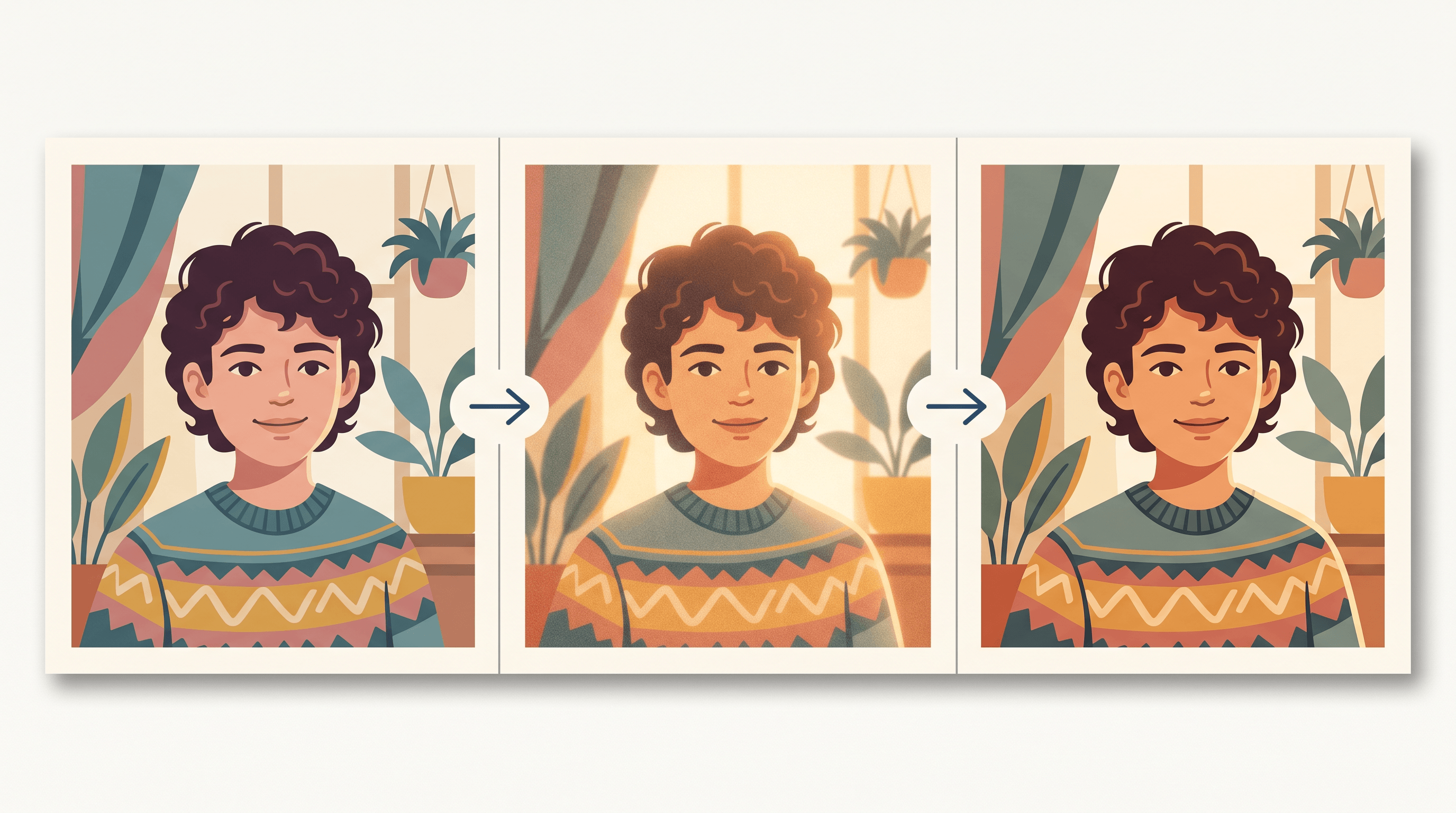
Restyle this photo to look like a 1980s film still shot on Kodak Portra 400. Warm highlights, slightly faded shadows, soft grain. Keep the composition and the subject's pose unchanged.
Naming the film stock matters — Qwen has seen enough labeled examples that "Portra 400" is a more reliable instruction than "warm vintage."
Step 2: Refine with Nano Banana Pro
Qwen's style is good but its detail can soften, especially on faces. Take Qwen's output and run a second pass through Nano Banana Pro with a tight prompt:
Keep this exact color grade and grain. Sharpen the eyes and the texture of the clothing. Do not change anything else.
This two-step chain is the same trick studios use when they want a stylistic look without losing print-resolution detail.
Step 3: Save the recipe
If you find a prompt pair that works on one photo, save it. Imgezy keeps your recent prompts in the side panel; copy the working pair into your notes app. Style transfer is the one task where "I will just remember the prompt" fails most often.
Pro Tips for Better Results
- Pick the model per task, not per project. Switching mid-edit costs nothing and matters a lot. Removal → Nano Banana Pro. Background → Flux Kontext. Style → Qwen + Nano Banana Pro.
- Name things specifically. "Remove the tourist behind me" beats "remove the person." "Tokyo street at night, neon signage" beats "city background."
- Chain edits when one model cannot do everything. Two cheap passes often beat one expensive one. This is the real difference between Omni and a multi-model stack.
- Check the seam, not the result. Most failed edits look right at a glance and wrong at 200% zoom. Always zoom into the boundary between original and edited pixels.
- Re-roll twice before reworking the prompt. Each model has a sampling temperature. The same prompt at a second seed sometimes fixes itself.
Gemini Omni vs Imgezy Side-by-Side
The Nano Banana Pro vs Gemini Omni comparison is the question this whole guide has been working toward. Honest comparison — neither tool is universally better. They optimize for different things.
| Dimension | Gemini Omni | Imgezy |
|---|---|---|
| Best for | One-shot edits, fast iteration, text-on-image | Per-task model control, edge cases Omni refuses, chained edits |
| Models exposed | One (Omni) | Five (Nano Banana Pro, Nano Banana AI, Seedream 4.5, Flux Kontext, Qwen Image Edit) |
| Object removal quality | Excellent on most photos | Excellent — Nano Banana Pro is on par with Omni |
| Background swap quality | Very good, occasionally too "clean" | Very good — Flux Kontext often more photo-realistic |
| Style transfer quality | Good but presety | Good — more variety, requires two steps for top quality |
| Text rendering | Best in class | Solid via Nano Banana Pro, slightly behind Omni |
| Commercial license | Per Google ToS, region-dependent | Included on Pro plan |
| Best for | First draft, single edits | Production runs, chained edits, batch work |
| Not ideal for | Anything Google safety filters reject | Users who want a single prompt to do everything |
Best for / Not ideal for
Gemini Omni — best for quick one-shot edits where you want a single text box to handle the whole job, especially when the output needs readable on-image text. Not ideal for cases where Google's safety filters block the edit, or where you want to swap models per task.
Imgezy — best for image editing workflows where different tasks need different models, batch processing, and edits that benefit from a second refinement pass. Not ideal for users who want exactly one prompt box and one model behind it.
Limitations and Notes
A few caveats worth stating up front, so your expectations match reality.
- Imgezy is not Omni. Some Omni behaviors — particularly its grasp of intent in a vague prompt — are not yet matched. Imgezy rewards specific prompts; Omni is more forgiving of vague ones.
- Identity preservation across edits is hard everywhere. If you run three sequential edits on the same person, expect some drift in facial features. This is a frontier problem for every current image model, Omni included.
- Style transfer has a quality ceiling. For poster-grade or print work, both tools struggle without manual touch-up. Plan on opening the result in Photoshop or Affinity for final polish.
- Credit math matters. A chained two-model edit in Imgezy costs more credits than a single Omni call. For high-volume work, run a small benchmark on your specific use case before committing.
FAQ
Is Imgezy a real Gemini Omni alternative for image editing?
Yes, for the three most common Omni editing tasks — object removal, background swap, and style transfer — Imgezy produces comparable results using Nano Banana Pro, Flux Kontext, and Qwen Image Edit. The interaction model is different (you pick the model per task) but the output quality is in the same range. For tasks Omni refuses or has not rolled out yet, Imgezy is often the only option.
Which Imgezy model is closest to Gemini Omni overall?
Nano Banana Pro covers the widest range of Omni's editing tasks in a single model — object removal, light style work, and text on image. It is the closest single-model match. For background swaps you want Flux Kontext; for stylization you want Qwen Image Edit chained with Nano Banana Pro.
How much does it cost to recreate one Gemini Omni edit in Imgezy?
A single edit on Nano Banana Pro is 2 credits. A chained Qwen → Nano Banana Pro style transfer is 3 credits. On the Basic plan ($9.99/month, 80 credits), you get roughly 40 single edits or 26 chained edits. The Pro plan ($19.99/month, 500 credits) is the better fit for daily use.
Can Imgezy match Gemini Omni's text-on-image quality?
Not quite, but it is close. Nano Banana Pro renders legible text for poster and thumbnail sizes. For dense paragraphs or small captions, Omni is still slightly ahead. If text quality is the deciding factor for your project, generate the image in Imgezy and overlay the text in Figma or Canva.
What is the fastest way to try this myself?
Open Imgezy, upload any phone photo, switch the model to Nano Banana Pro, and ask it to remove one object. That single test takes about 90 seconds end to end and gives you a clear read on whether the alternative meets your bar — without spending a credit on the first run for new accounts.
Conclusion
Gemini Omni is a strong release and worth using when the task fits its lane. For the editing jobs people share most — removing an object, swapping a background, applying a style — Imgezy reproduces the result with a per-task model stack: Nano Banana Pro for removals, Flux Kontext for backgrounds, Qwen Image Edit chained with Nano Banana Pro for style. The tradeoff is that you have to choose the model; the upside is that you can choose at all.
If you came here looking for a Gemini Omni image editing alternative because Omni is rate-limited, blocked in your region, or refusing the edit you need, the workflows above are the closest current match.
Ready to recreate your first Gemini Omni-style edit? Try Imgezy free → — pick the right model per task, run the chain, and ship the image. No design skills required, and the first edit on a new account does not cost a credit.