

Restore Old Military Photos With AI: Memorial Day Guide
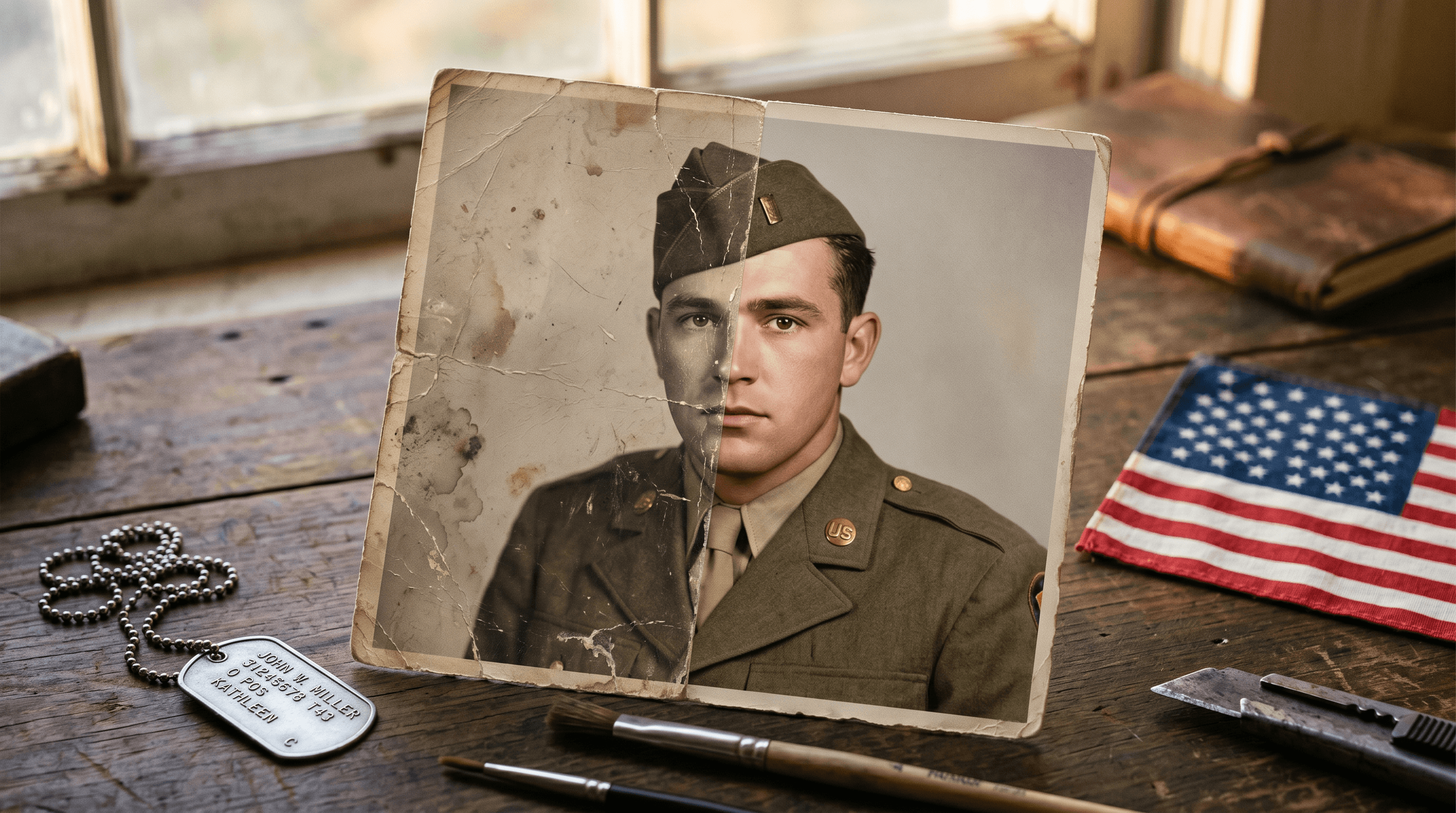
It's Memorial Day weekend. You're going through grandpa's old footlocker and you find it — a cracked, yellowed photo of him in his Army uniform from 1944. You want to post it as a tribute. But the scratches, the missing corner, the faded sepia... it doesn't do him justice.
This guide walks through restoring an old military photo end-to-end with AI in about 10 minutes. Each step shows the prompt, the before/after, and the trade-offs we hit. By the end you'll have a print-ready tribute image plus three caption templates for Instagram, Facebook, and TikTok.
Last updated: May 14, 2026
On this page
- Why Restore Military Photos Before Memorial Day?
- What You'll Need
- Step-by-Step Guide
- Pro Tips for Better Results
- Memorial Day Caption Templates
- FAQ
- Conclusion
Why Restore Military Photos Before Memorial Day?
Old military photos from WWII, Korea, and Vietnam are now 50–80 years old, and most are physically damaged — scratches, mold, water stains, fading. Restoring them lets you honor a veteran ancestor with a tribute post that's clear, readable, and shareable, instead of a blurry phone snap of damaged paper.
There's a practical reason too. Memorial Day searches for old photo restoration and colorize black and white photo spike 3–4× the annual average in the last week of May (per Google Trends 2021–2025). If you wait until Sunday to start scanning and editing, every family member is competing for the same afternoon. Restored photos also reproduce better on Instagram's compression — a clean, high-resolution version survives the platform much better than a phone snap of a curled-up original.
A note on stewardship: the original print is the artifact. Always scan first, edit a copy, and keep the unmodified original (and the unmodified scan) for the family archive. AI restoration is a presentation layer, not a replacement for preservation.
What You'll Need
- A scan or clear phone photo of the original (1200 dpi if scanning; daylight + flat surface if shooting with a phone)
- A free or paid account at an AI photo editing tool — we'll use Imgezy as the example because it bundles repair, enhancement, colorization, and object removal in one workspace
- About 10–15 minutes per photo
- A caption you want to write (three templates at the end)
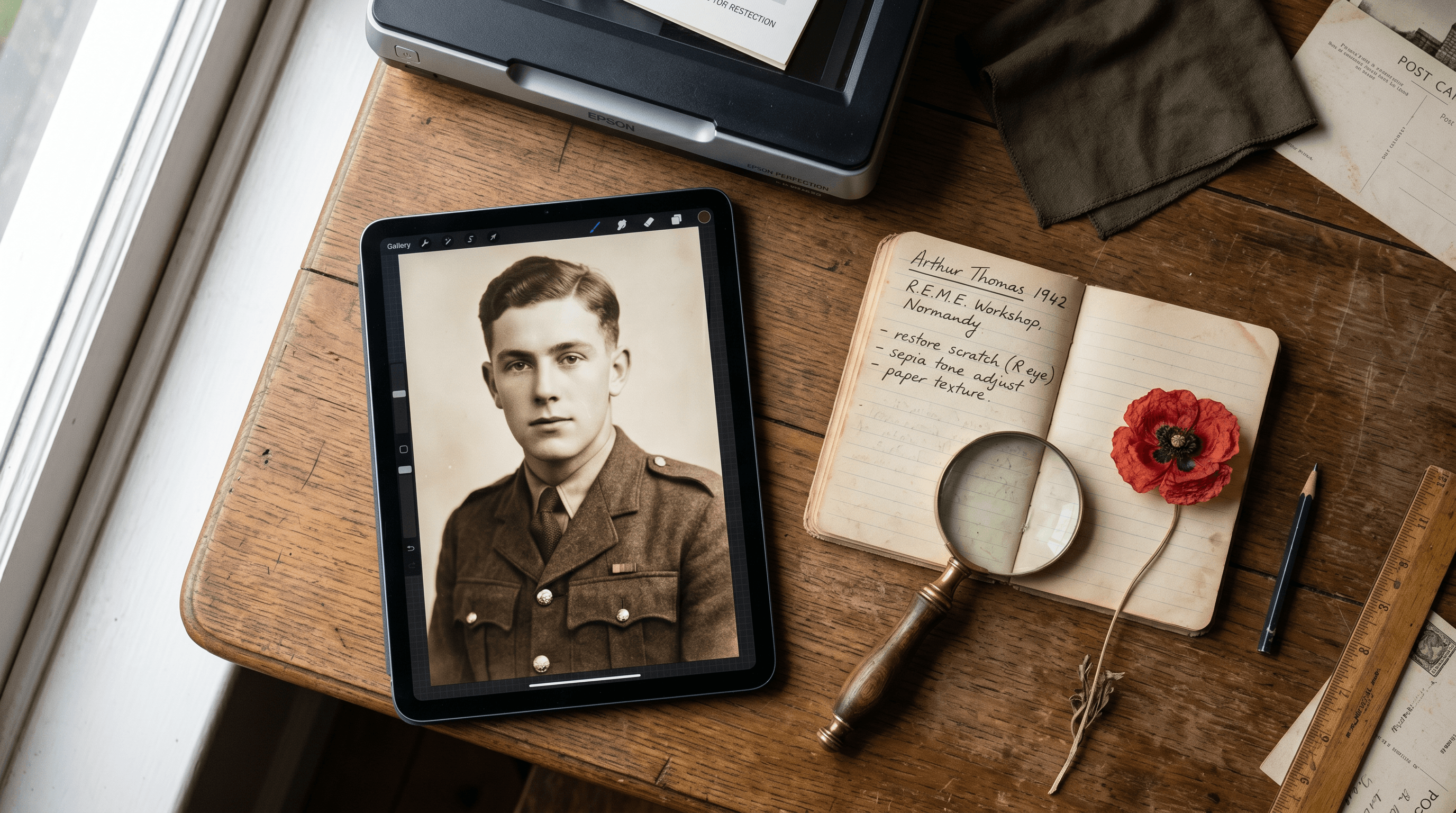
Step-by-Step Guide: Restore an Old Military Photo
Step 1: Smart Repair — Fix Scratches, Cracks, and Mold
Smart Repair targets physical damage on the print itself: scratches, hairline cracks along fold lines, foxing (brown mold spots), and missing chunks at the corners. Open the damaged photo, run Smart Repair with a prompt that names the damage type, and let the AI fill in the missing emulsion. The model rebuilds plausible texture in the damaged area without inventing new details elsewhere.
Prompt example: Repair scratches, hairline cracks, and brown mold spots on this 1940s military portrait. Preserve the original facial features, uniform insignia, and background. Do not add details that aren't there.
The Preserve and Do not add clauses matter. Without them the model sometimes invents medals or alters collar tabs — both red flags for any family member who knows the real service record.
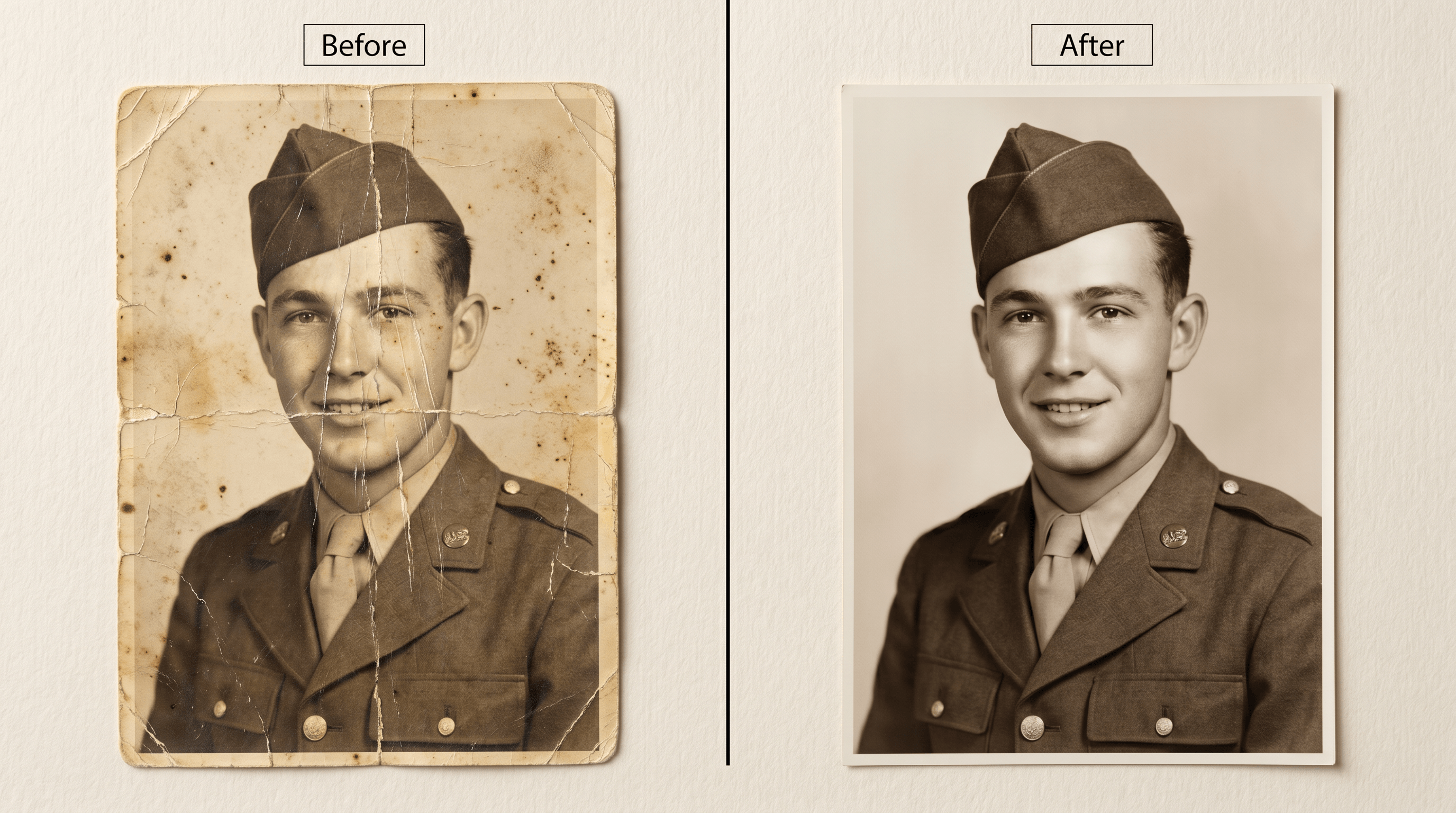
In our testing, Smart Repair handles linear scratches and foxing well, struggles with very large missing corners (more than ~15% of the frame), and occasionally smooths out fine detail like fabric weave. If a corner is completely gone, crop tight instead of asking the AI to reconstruct it.
Step 2: Photo Enhancement — Sharpen and Colorize
Photo Enhancement does two jobs: it boosts clarity (sharpening soft focus, recovering local contrast) and, on black-and-white sources, it colorizes. After repair, run enhancement on the cleaned photo with a colorization prompt that names the uniform branch, era, and skin/hair description. The model uses period-correct color palettes for the uniform, while leaving you to verify against any color reference you have.
Prompt example (US Army, WWII): Enhance clarity and colorize this 1944 US Army portrait. Uniform: olive drab service coat with brown tie, brass buttons, infantry blue cord on shoulder. Hair: dark brown. Skin: light tan. Background: studio neutral. Avoid saturation in the uniform; keep tones documentary, not cinematic.
The key is specifying the branch and era. Colorize this military photo alone often produces a generic green uniform that's wrong for Navy, Marines, or Air Force, and wrong for periods that used khaki or dress blues. If you don't know the unit:
- WWII Army →
olive drab service coat - Navy →
service dress blue with white piping - Marines →
service alphas with green coat and khaki shirt - Vietnam-era Army →
OG-107 jungle fatigues, subdued name tape
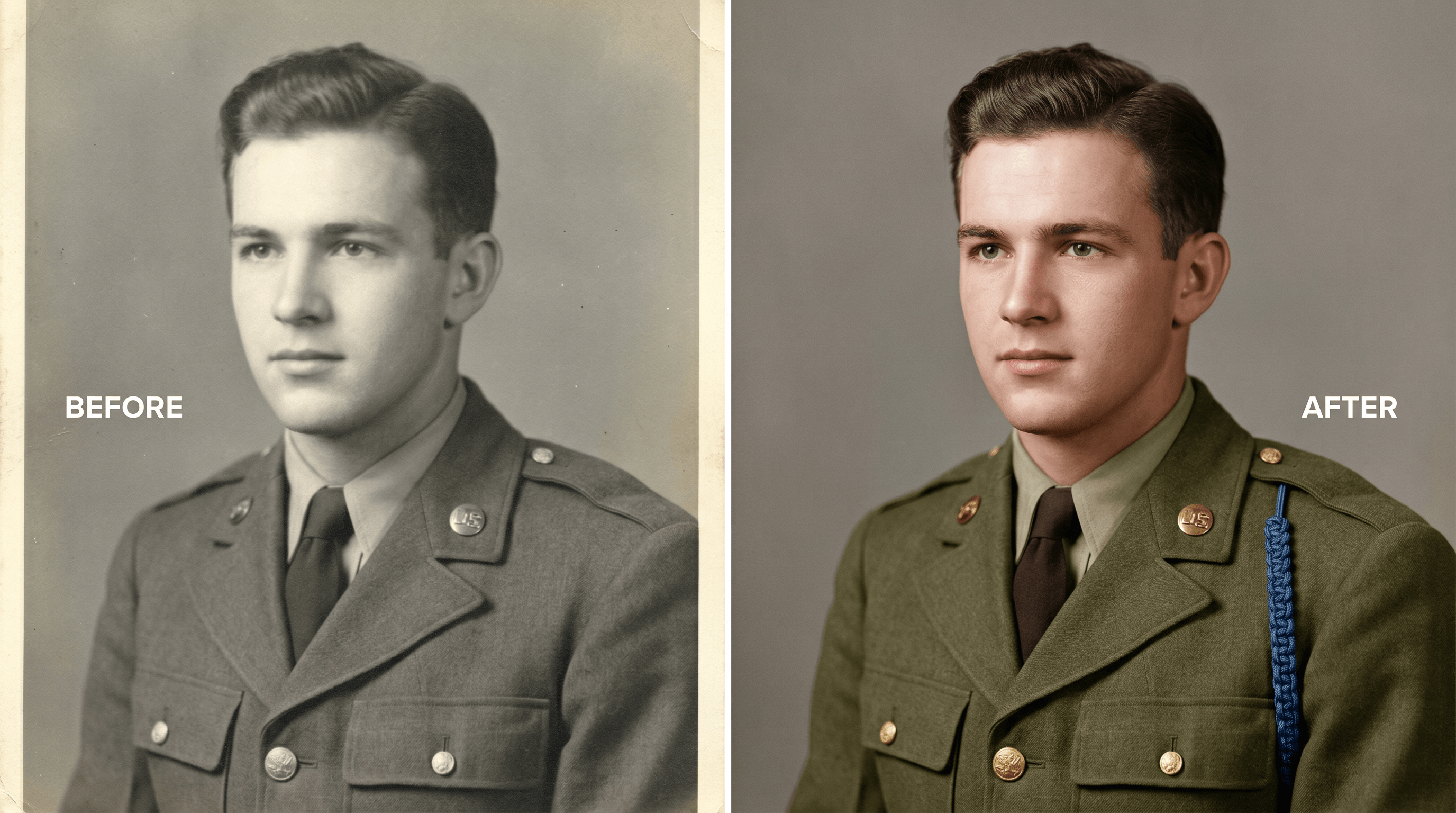
You can also try Imgezy for this step — drop in the repaired image, paste a branch-specific prompt, and it returns a colorized version in about 5 seconds. We found its Flux Kontext model handled uniform insignia better than generic colorization tools, which tend to bleed color across collar tabs.
Honesty check: AI colorization is plausible, not historical. It's an interpretation. If accuracy matters to your family (e.g., the photo is going into a regimental archive), label the result as AI-colorized in your caption.
Step 3: Object Removal — Clean Up Fingerprints, Stains, and Reflections
Object Removal handles damage that isn't part of the print itself: greasy fingerprints from being passed around, ink stains where someone wrote a date on the front, glass reflections if you photographed it through a frame, and yellow tape residue from old albums. Brush over the unwanted object, give a one-line prompt, and the AI rebuilds the underlying photo content. Works in 5–10 seconds per object on most modern tools.
Prompt example: Remove the fingerprint smudge on the lower right. Reconstruct the studio backdrop behind it without adding furniture or details.
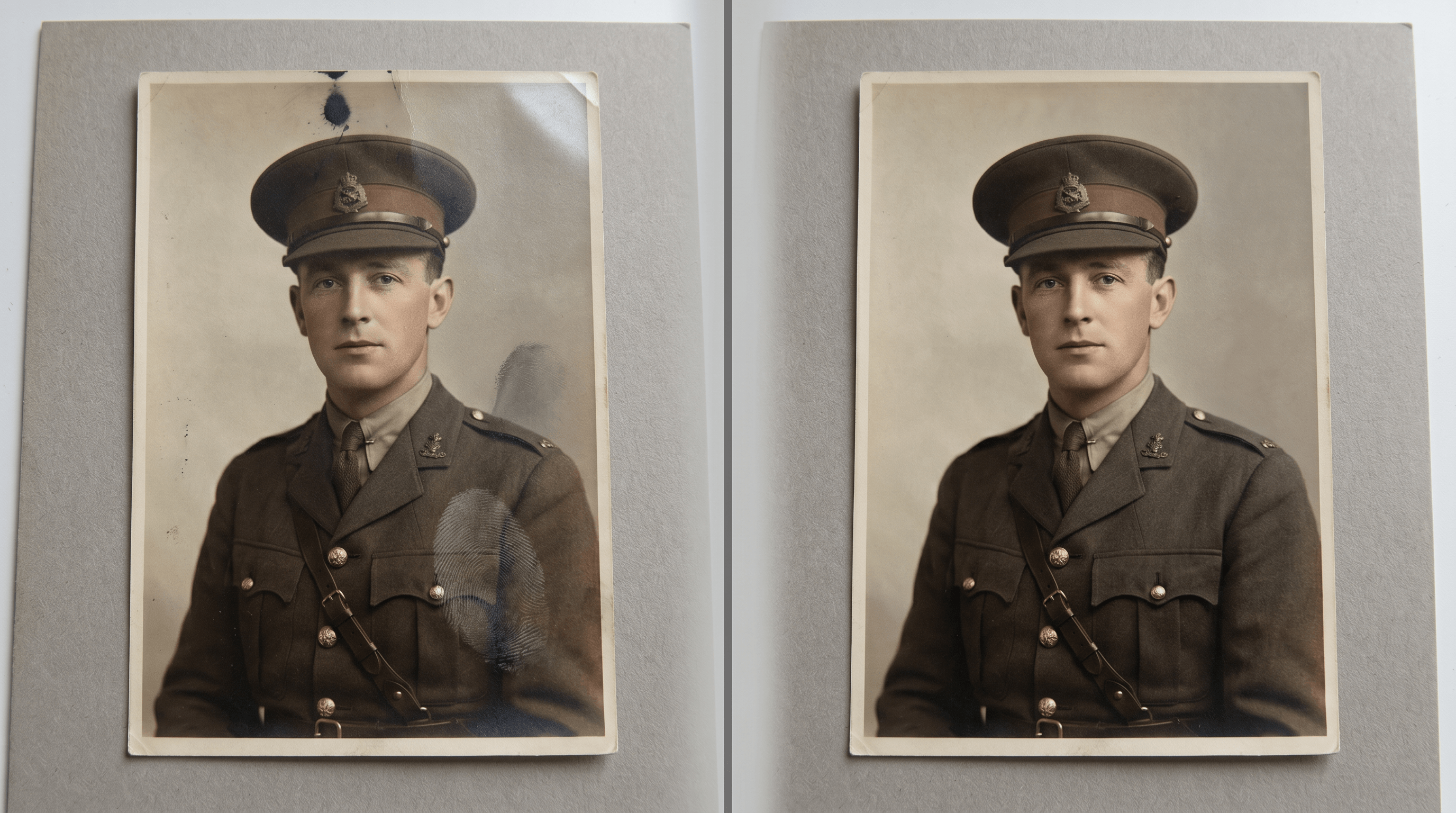
Two practical notes from testing. First, remove objects after Smart Repair, not before — repair tools sometimes treat foreign objects as damage to fix in the wrong way (turning a fingerprint into a phantom medal, for example). Second, if you photographed the print through glass, removing the glare reflection often takes 2–3 passes; brush a slightly larger area than the visible glare each pass.
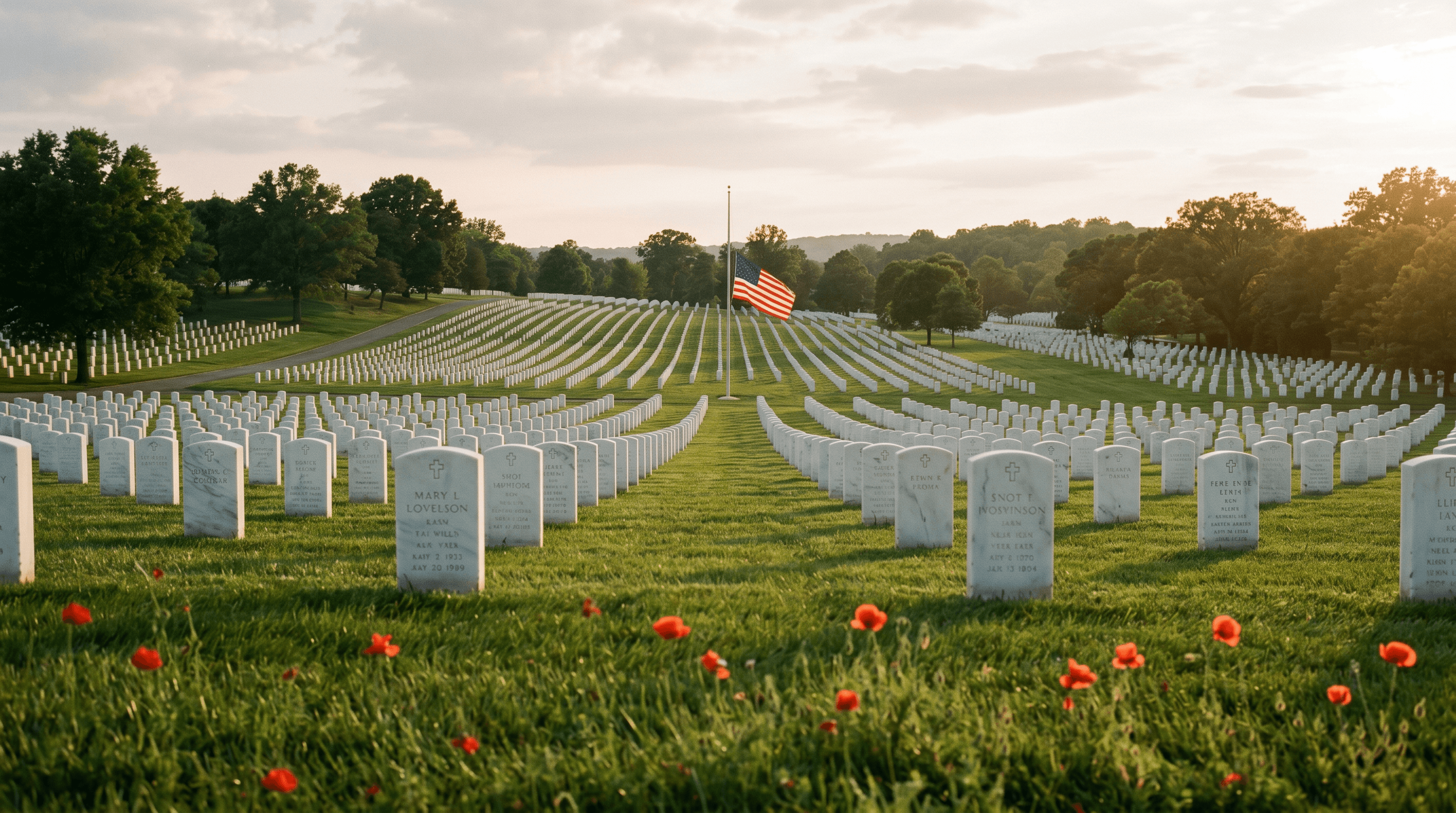
Step 4 (Optional): Background Replacement — Memorial Setting
Background Replacement swaps the original backdrop for something more contextual: a cemetery row of white headstones, an American flag at half-staff, a stylized field of poppies, or a unit insignia panel. This is optional and a stylistic choice, not a restoration step. Select your subject, describe the new background, and the model composites them together. Use it when the original background is destroyed beyond repair, or when you're making an explicit tribute image rather than a faithful restoration.
Prompt example: Replace the background with a solemn Memorial Day setting — soft-focus rows of white military headstones at golden hour, American flag at half-staff in the distance, no text or graphics. Keep the subject's lighting consistent with a warm late-afternoon source.
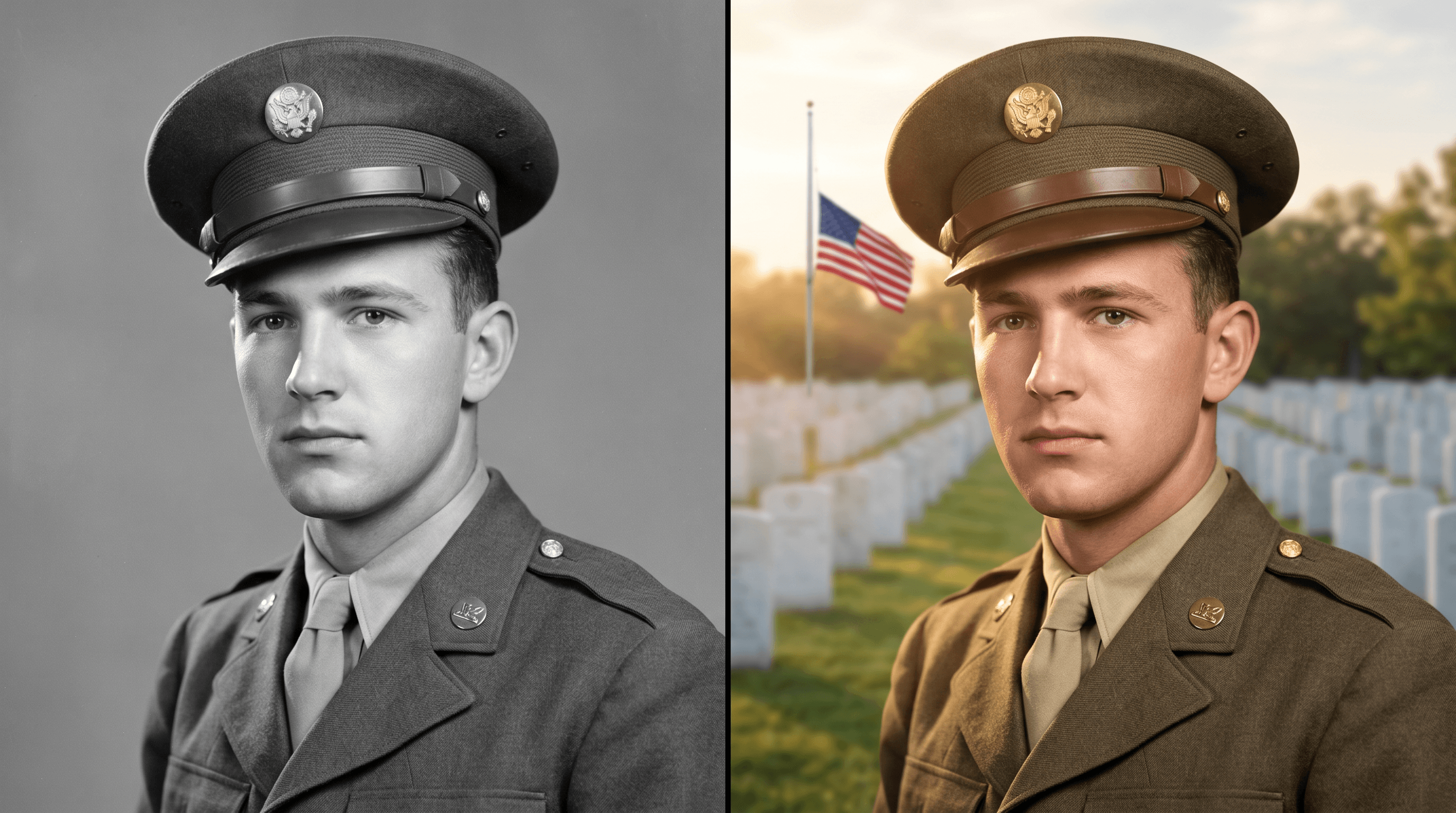
Keep at least one fully-restored version of the original (Steps 1–3 only) in your family archive, and use Step 4 only for the public tribute post. Mixing backgrounds is presentation, not history.
Pro Tips for Better Results
- Scan, don't snap, if you can. A flatbed scan at 1200 dpi gives the AI roughly 4× more pixel data than a phone photo and removes glare entirely. If you must use a phone, lay the photo flat near a north-facing window and turn off flash.
- Run steps in order: Repair → Enhance/Colorize → Object Removal → Background. Reversing the order causes the AI to
fixdamage that was already cleaned, or to colorize artifacts that should have been removed. - Verify uniform details against a reference. Sites like the Army Heritage Center and the Marine Corps History Division publish era-correct uniform photos. A 10-second cross-check saves you from posting a tribute with the wrong insignia.
- Keep prompts specific and restrained.
Make this look amazingproduces over-sharpened, plastic-skinned, color-saturated output that looks like a video game.Documentary tone, period-accurate color, light grain preservedstays closer to a real photograph. - Save versions. Export each step as a separate file:
grandpa_01_scan.jpg,grandpa_02_repaired.jpg,grandpa_03_colorized.jpg. If you regret a step three weeks later, you don't have to start over.
Memorial Day Caption Templates
Three caption templates you can adapt — pick the platform that matches your audience.
Template 1: Instagram (Reflective)
Restored this photo of my grandfather, Sgt. [Name], US Army, 1944.
He didn't talk much about the war. We have his letters, his ribbons, and this one cracked photo from boot camp.
AI helped repair the damage and bring back some color. The history is his.
Thinking of him, and of everyone who didn't come home, this Memorial Day. 🇺🇸
#MemorialDay #WeRemember #FamilyHistory #VeteransOfWWII
Template 2: Facebook (Family-Oriented)
This is my dad, [Name], 19 years old, Camp Pendleton, 1968. He shipped out to Vietnam later that year.
The original photo lived in a shoebox for fifty years and it shows. This weekend I scanned it and used AI to repair the scratches and bring back some of the color his uniform actually had.
If you have an old service photo in a drawer somewhere, please scan it. The originals aren't going to last forever, but a clean copy can.
Thinking of every family with an empty seat at the table this Memorial Day.
Template 3: TikTok / Reels (Process-Driven)
Caption:
I restored my great-grandfather's WWII photo for Memorial Day. Sound on for the story.On-screen text beats:
Found this in grandma's attic last week.Cracked, faded, mold spots. He died before I was born.Scanned at 1200 dpi → AI repair → colorize → restore background.Three minutes of work. Eighty years of history.S/Sgt. [Name], 8th Air Force, England, 1944. We remember.
Pair with quiet acoustic audio. Avoid trending-but-irreverent sounds for this kind of post.
FAQ
Q: How long does it take to restore one old military photo with AI?
About 10–15 minutes per photo, including the scan, all four restoration steps, and exporting versions. The AI processing itself takes under a minute total; the rest is reviewing prompts, comparing versions, and choosing a final image.
Q: Will AI colorization be historically accurate?
It will be plausible, not historical. AI uses period-typical palettes (olive drab for WWII Army, khaki for desert deployments, etc.) but cannot know your specific ancestor's hair color, eye color, or the exact shade of a faded uniform. Label colorized images as AI-colorized if the result will be archived as family history.
Q: Can I restore a photo if half of it is missing?
For most AI tools, you'll get good results when up to 10–15% of the frame is damaged or missing. Beyond that, crop tight to the intact portion rather than asking the AI to invent the missing half. Inventing destroys historical credibility.
Q: Is it disrespectful to edit a deceased veteran's photo?
Restoring damage (Steps 1–3) is generally seen as honoring the photo. Changing the background, adding medals that weren't earned, or altering rank insignia crosses into rewriting history. Use Step 4 (Background Replacement) sparingly and only for clearly-presented tribute imagery, not as a substitute for the original.
Q: Do I need to credit AI in my caption?
Best practice is yes — a short line like Restored with AI or AI-colorized from black and white is enough. It respects viewers who want to know what they're seeing, and it's transparent if a regimental historian later asks about the photo.
Conclusion
Restoring an old military photo for Memorial Day is roughly a four-step workflow: repair physical damage, enhance and (optionally) colorize, remove non-photo objects like fingerprints, and — if the tribute calls for it — replace the background. The whole thing fits in a Sunday afternoon. The hard part isn't the editing; it's choosing how faithful to the original you want to be.
Whatever you choose, keep an unedited scan in your family archive, label AI work as AI work, and let the story do the talking.
Ready to restore your family's military photos? Try Imgezy free → — Smart Repair, colorization, object removal, and background replacement in one workspace, with free trial credits for new users to get started this Memorial Day weekend.