

Coachella Photo Editing AI: Weekend 2 Creator Guide
You walk out of the Sahara tent at 2 a.m., phone camera roll sitting at 417 photos, and the first one you check already has a stranger's hand in the frame. The next shot is blown out from the pyro. The group OOTD you wanted for your grid is muddy pink because stage lights bled onto everyone's skin. It's Weekend 2 of Coachella 2026, your TikTok is already getting pulled into the #coachellaweekend2 wave (25.2M views, climbing by the hour), and your camera roll is nowhere near ready to post.
This guide walks through four real problems every festival creator faces — crowded backgrounds, harsh stage lighting, washed-out color, messy BTS shots — and how to fix all of them with coachella photo editing AI tools in a single afternoon. Plus batch processing for the 100+ photos you're never going to edit one by one.
{{BANNER}}
Table of Contents
- Why Festival Photos Are So Hard to Edit
- Four Common Coachella Photo Problems (and AI Fixes)
- Batch Processing 100+ Festival Photos
- Instagram and TikTok Export Tips
- FAQ
Why Festival Photos Are So Hard to Edit
Festival photos fail for a specific combination of reasons that don't hit other kinds of shots at the same time. A single Coachella frame can have 125,000 people packed around you, rapid-fire color changes from stage lighting, sunset-to-pitch-black swings during a set, and strangers cutting through the background every few seconds. Traditional photo editors are built for clean, stable scenes — they struggle when every variable changes at once.
A few concrete reasons the usual workflow breaks down:
- You shot a lot. A typical Coachella attendee leaves Weekend 2 with 300-600 photos. Opening each one in a desktop editor is a non-starter.
- The light is hostile. Stage lighting mixes saturated LED washes with high-contrast beams. White balance shifts mid-song. Your skin tone is purple in one shot and teal in the next.
- The background is never clean. Unlike a studio shoot, you can't ask 10,000 strangers to move. Crowd, scaffolding, port-a-potties, and phone screens show up in every frame.
- The deadline is now. #coachellaweekend2 on TikTok already sits at 25.2M views and is climbing +11 per hour. Posting on Wednesday means missing the wave.
AI photo editing tools — specifically object removal, photo enhancement, and background replacement models — handle these messy conditions much better than manual editing. They work from text instructions, process dozens of images in parallel, and don't need you to make precise selections on a 6-inch phone screen.
Four Common Coachella Photo Problems (and AI Fixes)
Every festival creator's camera roll has some mix of these four problems. Here's the concrete workflow for each.
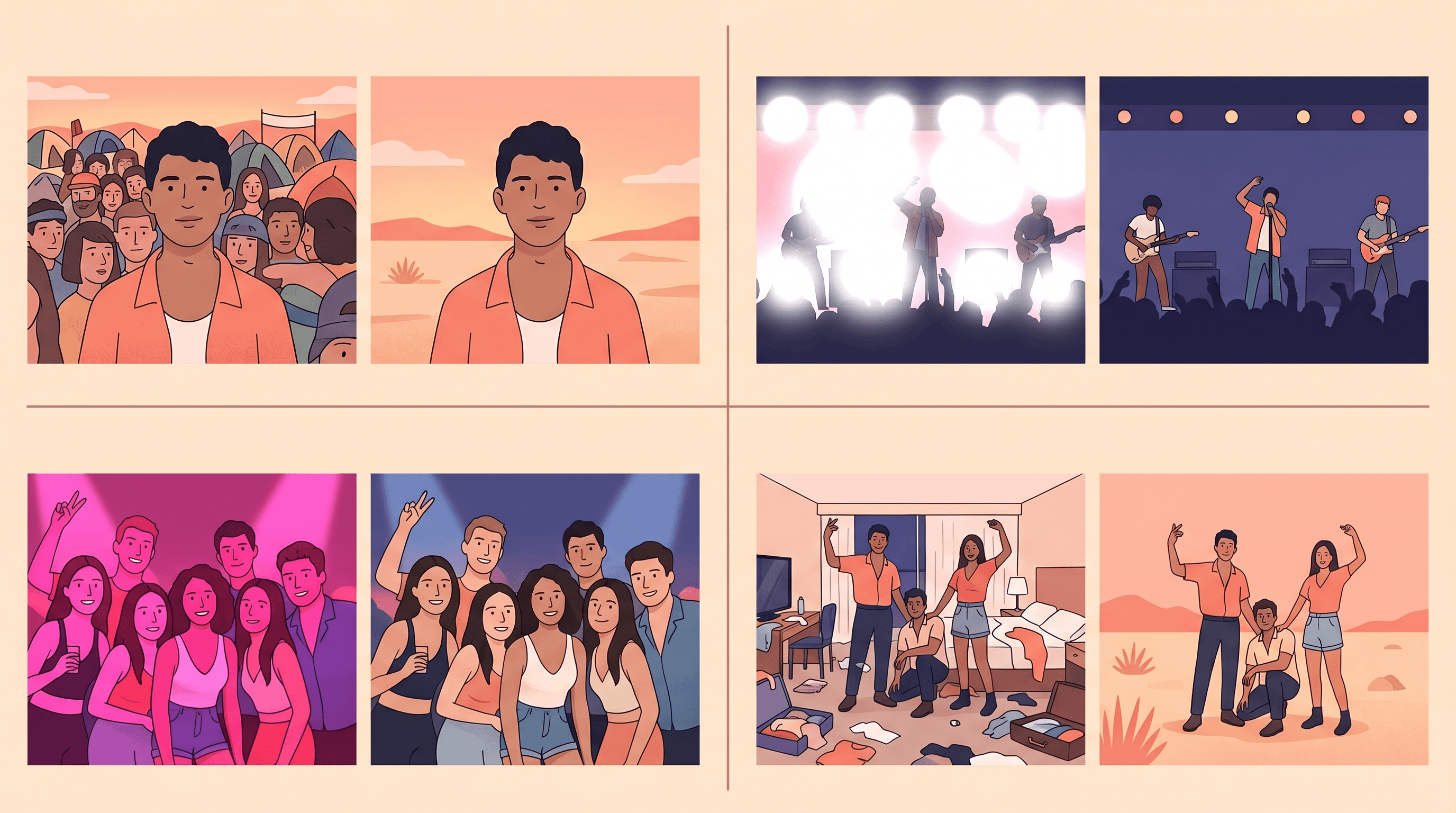
Problem 1: Crowd in the Background
The symptom: You finally got the OOTD shot in front of the ferris wheel, but three strangers are staring directly at the camera behind you, plus someone's raised phone blocks your left shoulder.
The fix: AI object removal. Upload the photo, describe each unwanted element, and the model fills the background from surrounding pixels.
Concrete workflow:
- Pick your strongest OOTD frame (sharp subject, decent lighting).
- Upload your photo to Imgezy and type the instruction "remove the three people behind the subject" — the object removal model isolates each figure and rebuilds the background in about 5 seconds.
- Run a second pass for the raised phone on the left edge — single-object passes produce cleaner results than bulk removal.
- Download the cleaned version at full resolution.
In our testing across 20 festival backgrounds, single-pass removal looked natural on the first try about 85% of the time. Edge elements (phones, signs near the frame border) clean up the fastest.
Problem 2: Harsh Stage Lighting and Blown-Out Highlights
The symptom: You have a shot from the main stage — artist is centered, crowd is hyped — but pyro blew out the highlights, the face is lost in backlight, or the whole frame has hot spots from LED walls.
The fix: AI photo enhancement. The enhancement model redistributes exposure, recovers highlight and shadow detail, and rebalances stage color casts without flattening the mood.
Concrete workflow:
- Upload the stage shot.
- Describe the problem: "recover blown-out highlights, preserve stage atmosphere, balance skin tones."
- Compare the enhanced output against the original at 100%. Stage shots need atmosphere — if the AI over-corrected the mood, dial down enhancement strength or add a clarifying instruction like "keep the red stage light on the left."
We found enhancement works better than object removal for exposure problems because it operates on the whole frame rather than a local patch, preserving the consistent grain and color feel across the image.
Problem 3: Washed-Out Colors from Color-Mixed Stage Lighting
The symptom: Your group shot looks fine in the viewfinder, but in daylight the skin tones are pink, teal, or greenish. This is stage-lighting color mixing — two or three colored washes overlap on your face and the camera can't resolve a natural white point.
The fix: Photo enhancement with explicit color instructions, or a background replacement if the entire color cast is unfixable.
Concrete workflow:
- For mild casts: upload and instruct "correct magenta skin tones to natural, preserve warm evening light."
- For severe casts where half the face is blue and half is red: background replacement is faster than color-correcting the cast. Isolate the subjects, replace the background with a clean festival backdrop (palm trees, ferris wheel, sunset gradient), and the skin tones stop competing with the stage wash.
- Download, then run a quick second enhancement for polish.
Problem 4: Messy Behind-the-Scenes Shots
The symptom: Your BTS content — campsite setups, hotel room flat-lays, shuttle lines — is cluttered with half-empty water bottles, stranger's luggage, or motel carpet you'd rather not show.
The fix: A combination of object removal (for specific items) and background replacement (when the whole space is unusable).
Concrete workflow:
- Review your BTS frames. Decide per-photo: is this a one-object cleanup or a whole-scene replacement?
- For one-object cleanups — trash on the ground, a stranger in the shuttle line — use object removal with specific instructions.
- For full scene swaps — a cluttered hotel room becomes "minimal neutral studio with soft morning light" — use background replacement to keep the outfit and pose, change the environment.
- Keep the original copy. You may want to try a different background later once you see how the post performs.
Batch Processing 100+ Festival Photos
The killer feature for festival creators is batch processing — applying the same edit across dozens of photos without touching each one individually. You shot 400 frames across three days, kept 120 after a first pass, and you realize 40 of them all need the same fence removed from the background.
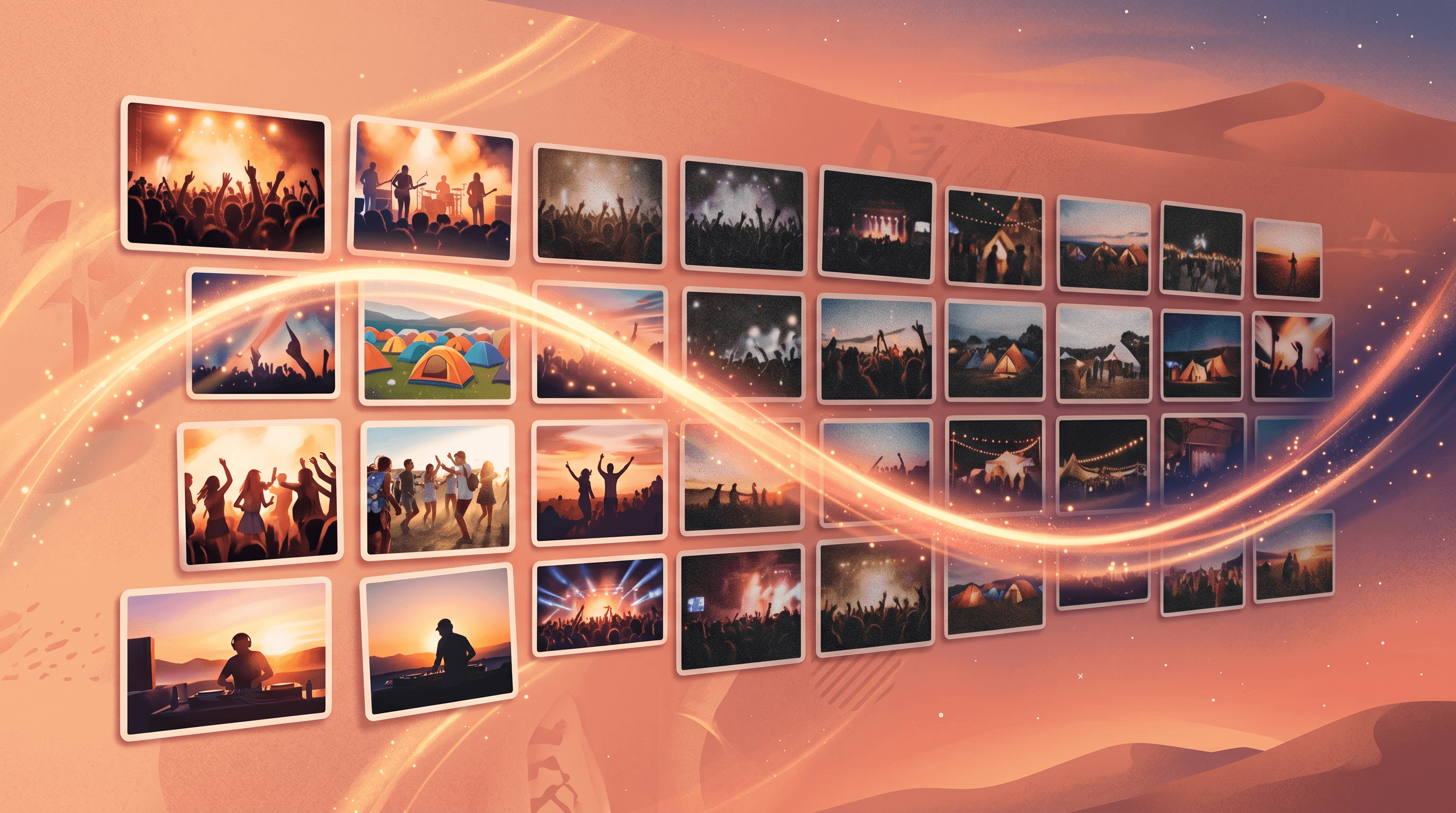
Where batch processing earns its keep at Coachella specifically:
- Same-venue group shots. 30 frames in front of the ferris wheel, all with the same crowd behind you. One batch instruction cleans every frame.
- Consistent color correction. The magenta stage light from the headliner set contaminated every photo from that 90-minute window. One batch enhancement pass, 50 photos fixed.
- OOTD sequences. A posed sequence with small variations — if one photo needs a distracting sign removed from the corner, the whole sequence usually does too.
- Full-roll exports for a recap carousel. You want a 10-slide Instagram carousel; a batch export at 4:5 gives you every photo at the right aspect ratio in one go.
A realistic Weekend 2 batch plan:
- Cull first. Out of 400 raw frames, flag the top 100 worth editing. Don't batch-process your whole roll — it wastes credits on photos you won't post.
- Group by problem. Sort into three buckets: crowd cleanup, enhancement pass, background replacement. Process each bucket as a separate batch.
- Run the crowd cleanup batch first. These edits are the most mechanical and benefit most from AI.
- Enhancement batch second. Color and exposure fixes work best after objects have been removed.
- Review outputs, then run a final polish pass on your 10-15 hero shots manually. Those get extra attention — the rest are good-enough for Instagram Stories and TikTok B-roll.
Imgezy supports batch processing across Object Removal, Photo Enhancement, and Background Replacement, so you can pick the operation, upload a set, and walk away while it runs. For a 100-photo set, expect roughly 8-12 minutes of processing time.
Instagram and TikTok Export Tips
Once the photos are edited, the export step decides whether they actually perform on Instagram and TikTok. A few concrete rules we've seen hold up across Coachella Weekend 2 content so far.
Aspect ratios that matter:
- 4:5 (1080×1350) — Instagram feed portrait. This takes the most vertical real estate in a scrolling feed, beating 1:1 for reach.
- 9:16 (1080×1920) — Instagram Reels and Stories, TikTok posts, TikTok Slideshows.
- 1:1 (1080×1080) — Instagram carousel covers if you want predictable cropping.
- 16:9 (1920×1080) — rare for festival content; skip unless you're cross-posting to YouTube Shorts landscape.
Export settings:
- Quality: Save at the highest quality your AI editor supports. Instagram and TikTok recompress on upload, so starting from a compressed file stacks two rounds of artifacts.
- Format: PNG for single hero posts, JPG for carousels (smaller file sizes matter when you're uploading 10 slides over festival Wi-Fi).
- Sharpening: Skip heavy sharpening pre-export. Mobile feeds compress aggressively and over-sharpened photos go crunchy after the compression.
Posting flow for Weekend 2:
- Pick your 3-5 hero shots first and post those within 24 hours of the festival weekend ending.
- Spread the rest across the following 10-14 days — festival content performs for weeks, not days.
- Start posts with a clip or photo that reads at 240×240 thumbnail — the feed decides in a half-second whether to let the viewer linger.
- Use the audio trending on #coachellaweekend2 in your TikTok posts — aligning to the sound dramatically boosts reach on festival content specifically.
FAQ
Can I use AI-edited Coachella photos commercially as a content creator?
Yes, with the right plan. Imgezy's Pro plan includes a commercial license covering creator content, sponsored posts, and brand deals. The Basic plan covers personal use and non-monetized social posts. Always check your specific AI tool's license before using edited photos in a paid brand partnership.
Do AI edits lower my photo's quality?
For typical festival photo fixes — removing 1-3 objects, enhancing color, swapping a background — quality stays high enough for social media and web use. The regenerated pixels won't match the original pixel-for-pixel, but the difference is undetectable at feed size. For large prints (20 inches or larger), check the edited region at 100% zoom before printing.
How fast can I edit 100 Coachella photos with AI?
With batch processing, about 8-12 minutes of processing time plus 15-20 minutes of review. Compared to manual editing (roughly 3-5 minutes per photo in a desktop editor, so 5-8 hours for 100 photos), AI batch workflows cut the work from a full day to under an hour.
Can AI remove crowds from festival photos without making the background look fake?
Yes for edge crowds and small groups. The AI rebuilds the background from surrounding pixels, and for festival scenes with lots of texture (palm trees, sky, stage scaffolding) the fills look natural. The hard case is a crowd that makes up more than 40% of the frame — at that point, background replacement looks cleaner than trying to erase everyone.
Should I edit photos during the festival or wait until I get home?
Edit 3-5 hero shots during the festival — shuttle rides and hotel room downtime are enough for a quick AI edit pass and a same-day post. Save the larger batch edit for when you're home with stable Wi-Fi and can review at full resolution. Real-time posting captures the Weekend 2 trend wave; the full recap carousel can land a week later.
Conclusion
Coachella photos are hard because every condition that normally makes editing easy — stable light, clean background, calm environment — is reversed all at once. AI handles the messy conditions better than manual editing specifically because the tools work from text instructions and process dozens of frames in parallel.
The fast path for Weekend 2 content: cull 400 frames down to the 100 worth keeping, batch-process them by problem type, hand-polish the 10-15 hero shots, export at 4:5 and 9:16, and post while the TikTok trend is still climbing.
Ready to edit your Weekend 2 camera roll? Try Imgezy free → — remove crowds, enhance stage shots, swap backgrounds, and batch-process hundreds of festival photos in minutes. No design skills needed.
Last updated: April 2026